


Two-Factor Authentication plugin
Plugin adds Time-based One-Time Password (TOTP) two-factor authentication to the October CMS backend. Protect administrator accounts with authenticator apps, single-use recovery codes, and trusted devices.
Features
- Backend 2FA powered by TOTP (RFC 6238) — compatible with Authy, FreeOTP, Google Authenticator, Microsoft Authenticator, LastPass Authenticator, 1Password and any standard authenticator app
- QR code setup with a configurable color (falls back to the backend brand primary color)
- Encrypted secret storage (Laravel
Crypt) and hashed, single-use recovery codes - Trusted devices — let users skip 2FA on recognized browsers for a configurable number of days
- Per-user and per-IP rate limiting of verification attempts to prevent brute-force
- Replay protection — a TOTP code accepted anywhere (sign-in, enrolment, My Account) cannot be reused within the validation window
- Force-enable 2FA for super users or for every backend user on next login
- Admin override — super users can disable 2FA for any account when a user loses access
- My Account integration — enable, disable, rotate recovery codes from the user profile
- Recovery codes download as a
.txtfile - Multilingual: English, Polish, German, French, Spanish, Brazilian Portuguese, Italian, Russian, Dutch and Czech translations included — more available on request
Why is this a paid plugin?
Something that is free has little or no perceived value. Users do not commit to free products and only use them until something else that looks nice and free comes along. When I invest my time in the development of a new plugin I commit to supporting and maintaining it. I ask my customers to do the same. I do not make money from this plugin by advertisements, upgrades or additional services like hosting or setup.
Did you know that 30% of your purchase or donation goes to help fund the October Project?
My plugins take many hours to develop (40-120+) and even more hours to document and maintain. My paid plugins have to pay for both this time, and the time I am spending on free plugins and less successful paid plugins. This means that it will take even a successful plugin years to become profitable. Please consider buying an extended license if you want me to continue to maintain these plugins for the very small fee I ask in return or hire me for adding functionality that you feel is missing but valuable.
Like this plugin?
If you like this plugin, give this plugin a Like or Make donation with PayPal.
My other plugins
Please check my other plugins.
Support
Please use GitHub Issues Page to report any issues with plugin.
Reviews should not be used for getting support, if you need support please use the Plugin support link.
Icon made by Darius Dan from www.flaticon.com.
Installation via Command Line
php artisan plugin:install Renatio.TwoFactorAuth
Usage
After installation plugin will register its settings page under Settings → System → Two-Factor Authentication and add a new Two-Factor Authentication tab to every backend user profile.
To enable 2FA for your own account:
- Go to Settings → Administrators and open your profile (My Account).
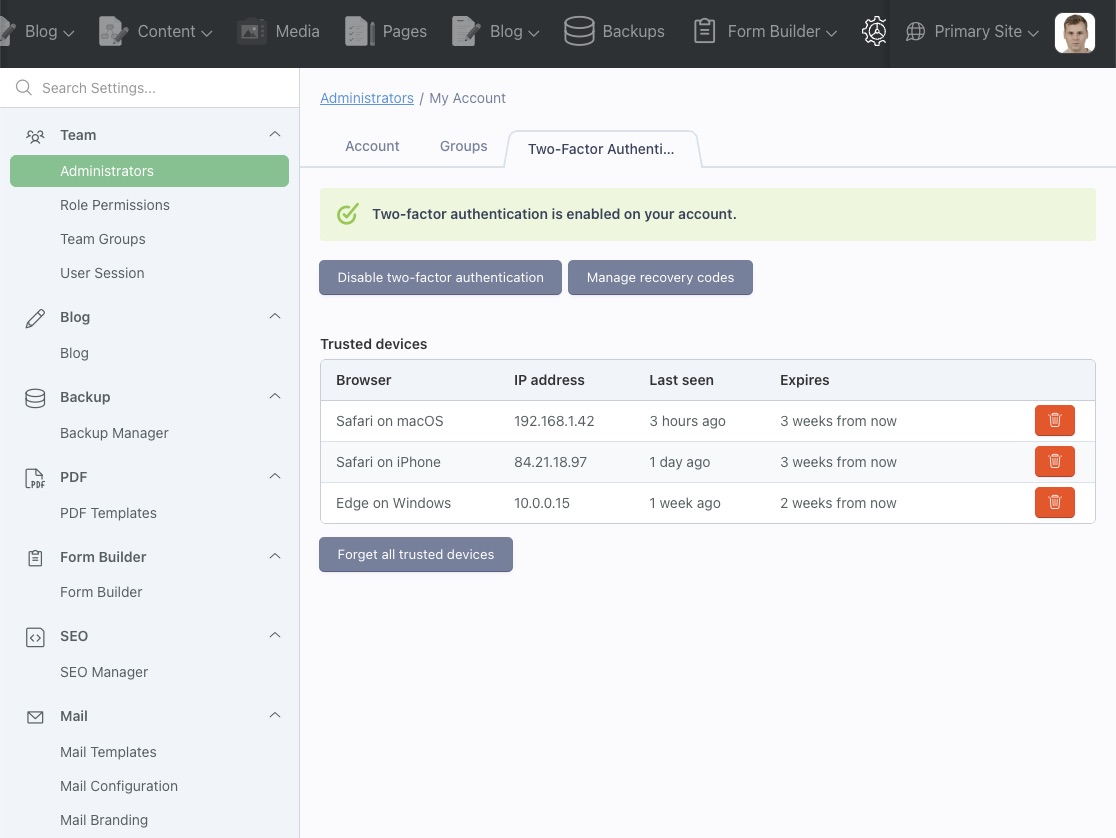
- Switch to the Two-Factor Authentication tab and click Set up two-factor authentication.
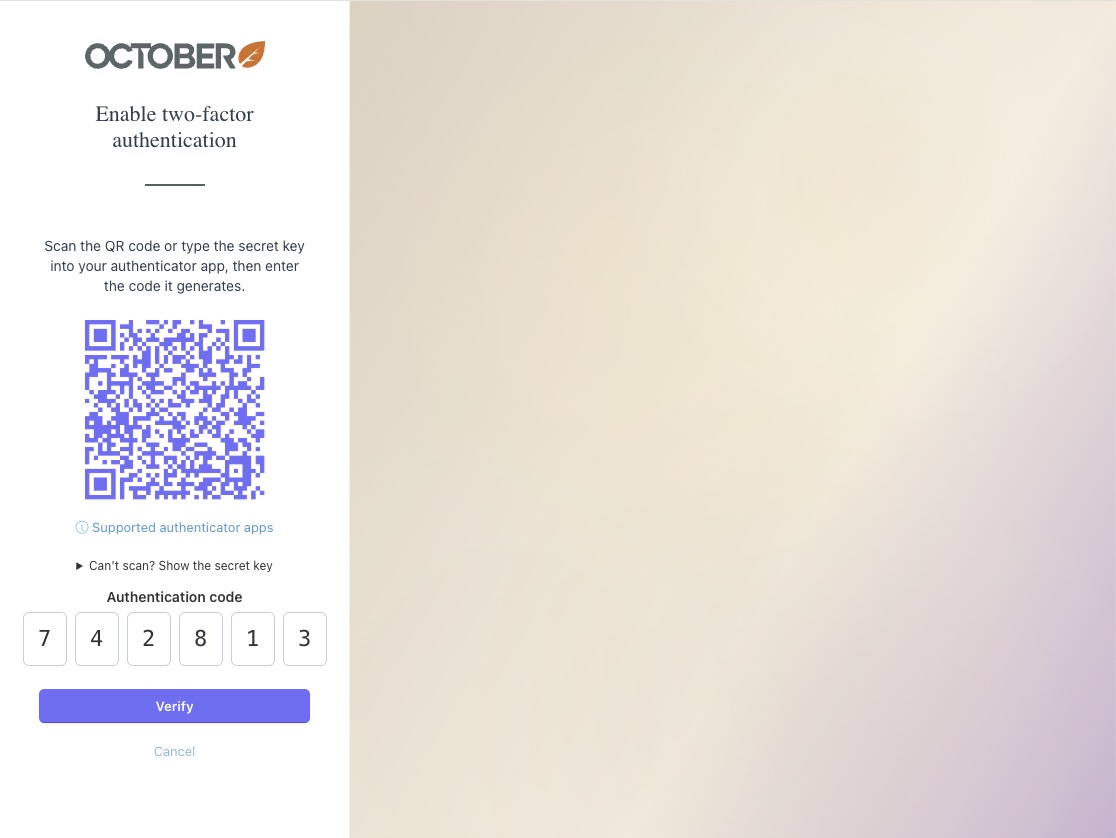
- Scan the QR code with your authenticator app (or paste the secret key manually).
- Enter the 6-digit code shown in the app to confirm.
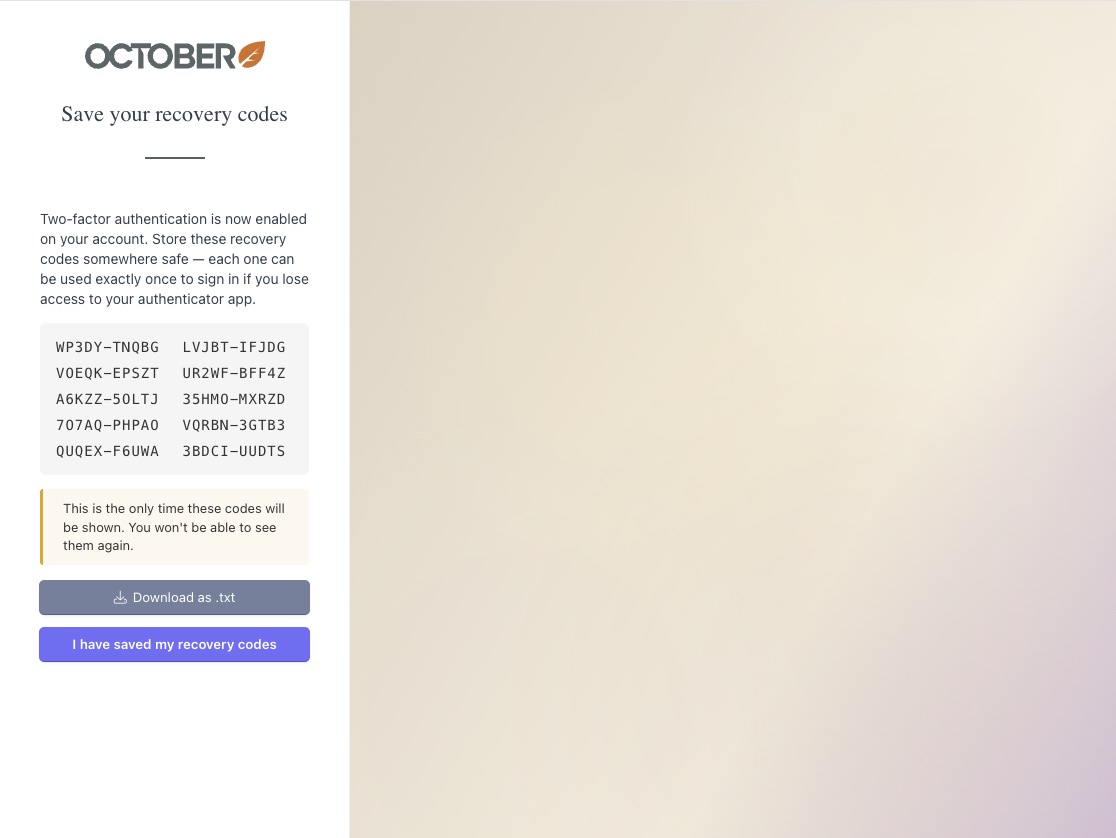
- Save the recovery codes shown on screen — they will not be displayed again. Download them as a
.txtfile and confirm with I have saved my recovery codes.
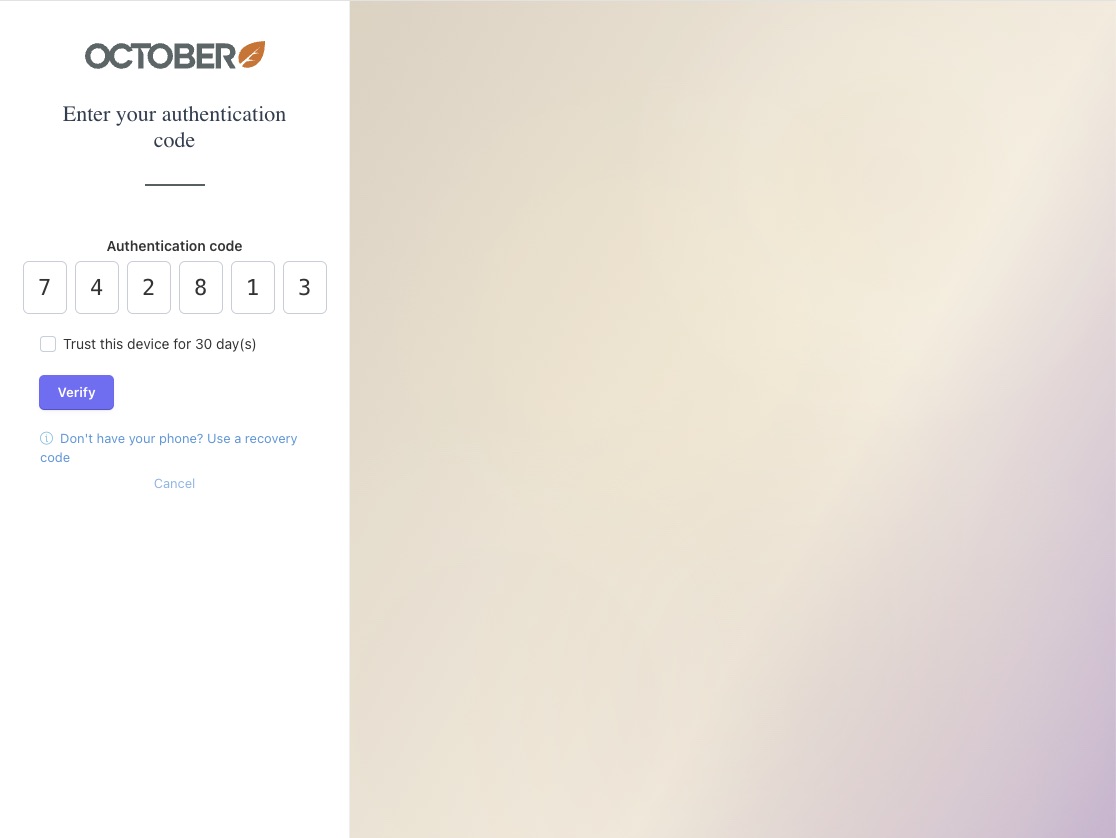
From the next login, after entering your password you will be redirected to the verification screen and prompted for the current 6-digit code from your authenticator app. If enforcement is enabled and the user has no 2FA configured, the same flow walks them through enrolment (enable → codes → sign in) before granting access.
Supported authenticator apps
Any TOTP-compatible app works. Recommended:
- Authy (iOS, Android, Chrome, macOS)
- FreeOTP (iOS, Android)
- Google Authenticator (iOS, Android)
- Microsoft Authenticator (iOS, Android, Windows)
- LastPass Authenticator (iOS, Android, macOS, Windows)
- 1Password (iOS, Android, macOS, Windows)
Settings
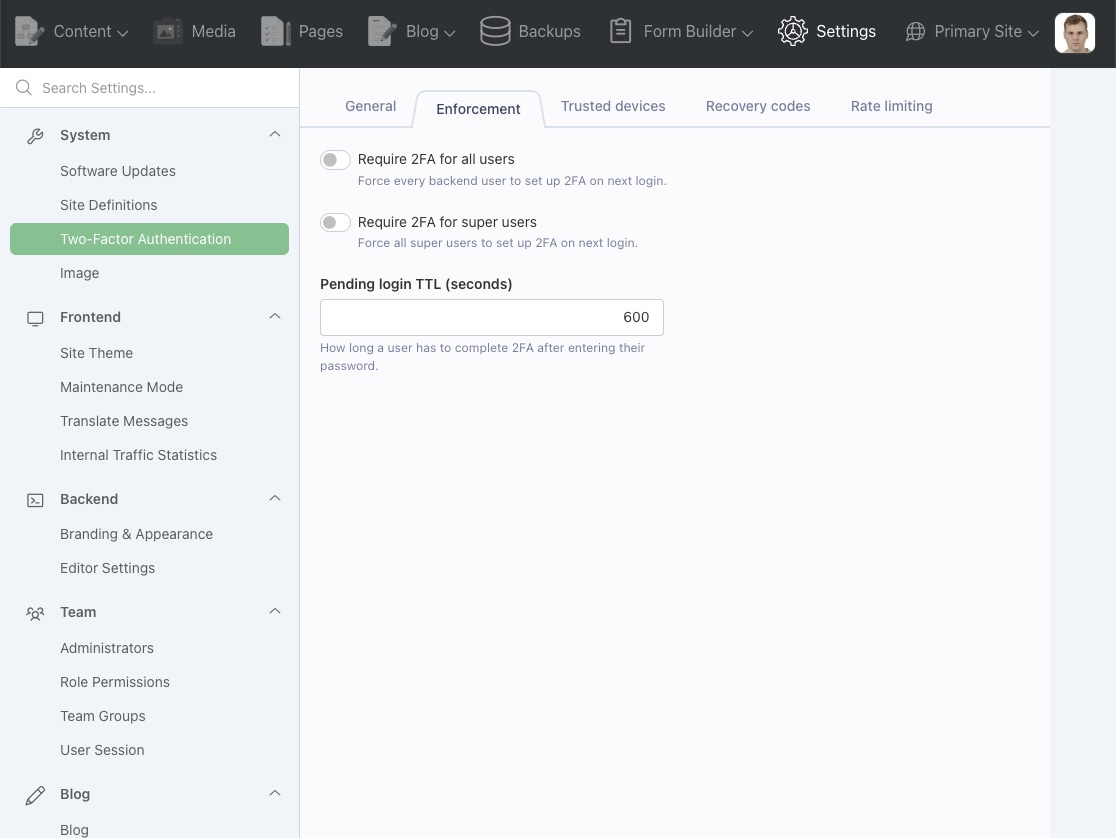
Plugin settings are available at Settings → System → Two-Factor Authentication and grouped in five tabs. Every option ships with a sensible default.
General
- Issuer name — label shown in authenticator apps next to the account. Leave empty to use the site host name.
- QR code color — foreground color of the generated QR code. Leave empty to fall back to the current backend brand primary color.
Enforcement
- Require 2FA for super users — forces every super user to set up 2FA on next login.
- Require 2FA for all users — forces every backend user to set up 2FA on next login.
- Pending login TTL (seconds) — how long a user has to complete the verification step after entering their
password. Default:
600(10 minutes). - Verification window — number of 30-second TOTP cycles accepted in either direction. Default:
1(±30s), which matches the default of the underlyingpragmarx/google2falibrary. Increase only if users see "code expired" errors — make sure your server clock is NTP-synced first, because every extra step widens the window in which a captured code still works.
When enforcement is enabled, users without 2FA configured are walked through enrolment after entering their password and cannot reach the backend until setup is complete. Closing the browser before the QR code is confirmed does not bypass the check — the next login starts enrolment again. Once the code is confirmed the secret is stored, so a user who closes the browser on the recovery-codes screen is enrolled but has no saved codes: the next login goes straight to the verification screen, and they should generate a fresh set from My Account → Two-Factor Authentication → Manage recovery codes. The first backend session is only opened once the codes screen is acknowledged.
Enforcement applies at the next sign-in. Sessions that are already open are not interrupted.
Trusted devices
- Allow trusted devices — let users skip 2FA on devices they mark as trusted.
- Trusted device lifetime (days) — how long a trusted device is remembered. Default:
30. - Trusted device cookie name — cookie name used to remember trusted devices. Default:
oc_tfa_trust.
When a user checks Trust this device on the verification screen, an encrypted, Secure, HttpOnly,
SameSite=Lax cookie is issued. The Secure flag is not configurable, so trusted devices only work over HTTPS —
the checkbox is hidden when the backend is served over plain HTTP, and a request that still asks for it shows a
warning instead of recording a device the browser could never present.
On subsequent logins from the same browser the 2FA prompt is skipped until the cookie expires or the user disables
2FA. Each trusted device is also recorded in the database and can be reviewed or revoked individually from
My Account → Two-Factor Authentication. Each user gets their own cookie (<name>_<user id>), so several accounts
can trust the same shared browser at once; a cookie issued by an earlier release under the shared name keeps working
and is moved to the per-user name on first use.
Recovery codes
- Number of recovery codes — how many single-use recovery codes are generated per user. Default:
10. - Recovery code length — total number of characters in each code, split across two chunks. Default:
10(rendered as two 5-character chunks separated by a dash, e.g.WP3DY-TNQBG).
Rate limiting
- Max attempts per IP — failed verifications allowed per IP before a temporary lockout. Default:
5. - IP lockout window (seconds) — how long the IP counter is remembered. Default:
300. - Max attempts per user — failed verifications allowed per user across all IPs. Default:
20. - User lockout window (seconds) — how long the per-user counter is remembered. Default:
3600.
Recovery codes
Recovery codes are single-use fallback codes shown once during 2FA setup. They are stored hashed and let a user sign in if their authenticator device is unavailable.
Codes are rendered as two chunks separated by a dash (e.g. WP3DY-TNQBG) and can be regenerated from
My Account → Two-Factor Authentication → Manage recovery codes after confirming with a fresh authenticator code
(or the account password, in a session opened with a recovery code — see Emergency access below). Regenerating
invalidates all previous codes and the
freshly generated set is shown in place inside the popup, with a .txt download button — they will not be displayed
again.
On the verification screen the Don't have your phone? link leads to the recovery code form. Submitting a valid recovery code signs the user in and removes that code from the remaining pool.
Admin override
Super users can force-disable 2FA for another user from that user's profile. This is useful when a user loses access to their authenticator device and has no recovery codes left. The override:
- Clears the encrypted TOTP secret.
- Deletes all recovery codes.
- Forgets every trusted device for the user.
The user will be prompted to configure 2FA again on next login if enforcement is enabled.
Rate limiting
Verification attempts — TOTP codes and recovery codes at sign-in, and the code-or-password confirmation when disabling 2FA or regenerating codes from My Account — are rate-limited per IP and per user to prevent brute-force once a password is known. Two counters run independently:
- Per user and IP:
5failed attempts within300seconds by default, so a single browser is locked out quickly - Per user, across all IPs:
20failed attempts within3600seconds by default, which caps a distributed attack on one account
Neither counter limits one IP address across different accounts.
A successful verification resets both counters. All four values are configurable in Settings → Rate limiting.
Requirements
- October CMS 4.x
- PHP 8.2 or higher
- The GD PHP extension (
ext-gd), used to render the enrolment QR code
A note on APP_KEY
TOTP secrets are encrypted with the Laravel APP_KEY. Changing that key — or restoring the database into an
environment with a different key — makes every stored secret unreadable and 2FA sign-in fails with a decryption error.
Recovery codes are hashed rather than encrypted, so they keep working: use the Don't have your phone? Use a recovery
code link to sign in. Disabling 2FA from My Account also needs a working code, so have another super user use
Force disable for this user, or run php artisan tfa:disable <login> (see Emergency access), then enrol again.
Never rotate APP_KEY on a site with enrolled administrators without disabling 2FA for every account first
(php artisan tfa:disable --all).
Emergency access
If the last super user loses both their authenticator and their recovery codes, 2FA can be cleared from the command line without a second super user:
php artisan tfa:disable admin          # login or e-mail address
php artisan tfa:disable --all          # every enrolled user, e.g. before rotating APP_KEY
php artisan tfa:disable admin --force  # skip the confirmation prompt (deploy scripts)
The command clears the secret, the recovery codes and the replay marker, removes the user's trusted devices, and
reports what it did. Soft-deleted users are included, and --all also picks up accounts that only have leftover
recovery codes or trusted devices. Without a terminal (--no-interaction, cron, deploy hooks) it refuses to run
unless --force is given, so it never silently skips the prompt. The user can then sign in with their password alone
and enrol again (immediately, if enrolment is enforced).
A user who still has a recovery code does not need this: in a session opened with a recovery code, Disable and Manage recovery codes accept the account password in place of an authenticator code, so the device can be replaced without an override. In every other session — including one opened by a trusted device — only a fresh authenticator code is accepted.
If even the console is out of reach, the same result by hand (back the database up first):
UPDATE backend_users
   SET tfa_secret = NULL,
       tfa_enabled_at = NULL,
       tfa_recovery_codes = NULL,
       tfa_last_otp_ts = NULL
 WHERE login = 'admin';

DELETE FROM backend_user_trusted_devices
 WHERE user_id = (SELECT id FROM backend_users WHERE login = 'admin');
Scheduler
Expired trusted-device records are removed by a daily scheduled job. It only runs if October's scheduler is running
(php artisan schedule:run every minute, which Laravel Forge configures by default). Without it, expired rows stay in
backend_user_trusted_devices; they are still refused at sign-in, so this is housekeeping rather than a security
issue.
Permissions
Plugin registers a single permission:
- renatio.twofactorauth.access_settings — required to manage the plugin's settings page.
Events
The plugin hooks into standard October backend events:
backend.page.beforeDisplay— intercepts the sign-in form to route users through 2FA when required.backend.form.extendFields— adds the Two-Factor Authentication tab to backend user profiles.
It also fires its own events, so another plugin or the project can send a mail, write an audit entry or react to a
lockout. Every payload starts with the Backend\Models\User concerned. The names are available as constants on
Renatio\TwoFactorAuth\Classes\Events.
| Event | Fired when | Payload |
|---|---|---|
renatio.tfa.enabled |
a user confirms enrolment | $user |
renatio.tfa.disabled |
2FA is switched off in My Account, by a super user, or by tfa:disable |
$user, $actor — the user who did it, null from the console |
renatio.tfa.verified |
a second factor is accepted, or the step-up in My Account passes | $user, $method — totp, recovery, trusted_device or password |
renatio.tfa.failed |
a code or step-up password is rejected | $user, $method — totp, recovery or password |
renatio.tfa.lockedOut |
a failed attempt exhausts the rate limit | $user, $ip |
renatio.tfa.recoveryCodesRotated |
recovery codes are rotated in My Account; the initial set is covered by enabled |
$user |
renatio.tfa.recoveryCodeUsed |
a recovery code is consumed | $user, $remaining — codes left |
renatio.tfa.deviceTrusted |
a browser is remembered for the first time | $user, $device — the TrustedDevice model |
renatio.tfa.deviceForgotten |
a trusted device is removed, one event per device | $user, $device |
password appears only for the step-up in My Account after a recovery-code sign-in; it is never a second factor at
sign-in. Events fire after the plugin has finished its own work, so a listener that throws aborts the request like
any other error but cannot leave 2FA half-configured or an attempt uncounted. Listen in your plugin's boot():
use Backend\Models\User;
use Renatio\TwoFactorAuth\Classes\Events;

Event::listen(Events::LOCKED_OUT, function (User $user, ?string $ip): void {
    Mail::send('acme.audit::mail.tfa_lockout', ['user' => $user, 'ip' => $ip], function ($message) use ($user) {
        $message->to($user->email);
    });
});
-

Mark van den Elzen
Found the plugin useful on 23 Jun, 2026
Works great! I will use this again for other projects!
-

Renatio author
Replied on 5 Sep, 2026
Thanks, Mark — glad it's doing its job! Good to hear you'd use it again on other projects.
If you ever hit a problem or have an idea for a feature, please open an issue on the GitHub Issues page.
-


| 1.1.1 |
Name the two-factor column on the administrators list 2FA and add a 2FA filter to show only enrolled or only unenrolled users. Sep 06, 2026 |
|---|---|
| 1.1.0 |
Fire renatio.tfa.* events for enrolment, verification, lockouts, recovery codes and trusted devices; fix a crash when a trusted-device cookie is sent as an array; raise static analysis to PHPStan level 7. Sep 05, 2026 |
| 1.0.8 |
Fix the QR code losing the brand colour when the backend colour mode is set to auto, and add static analysis to the plugin. Sep 03, 2026 |
| 1.0.7 |
Colour the backend buttons by the weight of their action — disabling two-factor authentication and forgetting trusted devices now stand out. Sep 03, 2026 |
| 1.0.6 |
Password as an alternative to the code in My Account, per-user trusted-device cookies, server-side settings validation, the tfa:disable command, and a refreshed backend UI. Sep 03, 2026 |
| 1.0.5 |
Security release. Fix two ways to bypass 2FA with the password alone, honour the October login throttle, and require ext-gd. Sep 03, 2026 |
| 1.0.4 |
Lower minimum PHP requirement to 8.2 for broader project compatibility. Apr 28, 2026 |
| 1.0.3 |
Replay-protect TOTP codes via verifyKeyNewer and add a configurable validation window. Apr 28, 2026 |
| 1.0.2 |
Polish enrolment popups and standalone layout. Apr 28, 2026 |
| 1.0.1 |
Fix sign-in bounce behind proxies, harden cookies, and polish the UI. Apr 28, 2026 |
| 1.0.0 |
First version of Renatio.TwoFactorAuth Apr 28, 2026 |
Versions not listed here need no action. Back up the database before upgrading.
Upgrading To 1.0.0
Requires October CMS 4.x and PHP 8.4 (8.2 from 1.0.4). Run php artisan october:migrate. Enforcement is off by
default; review Settings → System → Two-Factor Authentication and decide whether to enforce 2FA for super users
or for everyone.
Upgrading To 1.0.3
Run php artisan october:migrate. TOTP codes are now single use within the validation window, and the new
Verification window setting on the Enforcement tab defaults to 1 (±30 seconds).
Upgrading To 1.0.4
The minimum PHP version drops from 8.4 to 8.2.
Upgrading To 1.0.5
Security release. Upgrade every installation running 1.0.0 – 1.0.4. Two flaws let anyone who knew a backend user's password bypass 2FA entirely; both are fixed.
The plugin now requires the GD extension (ext-gd), so run composer update. Run php artisan october:migrate to
record the version. Open the plugin settings once and confirm the Verification window value, which now has a
stored default.
Upgrading To 1.0.6
Run php artisan october:migrate.
Settings are validated on save against the ranges the form shows. A value outside them is reported on the first save of the settings page; correct it and save again.
Trusted-device cookies are now issued per user. Existing cookies are moved to the new name on first use, so nobody has to re-trust a browser.
After signing in with a recovery code, disabling 2FA and rotating recovery codes in My Account accept the
account password instead of the authenticator code, so a user who lost their device can re-enrol.
php artisan tfa:disable <login> (or --all) disables 2FA from the console.
Upgrading To 1.1.0
Run php artisan october:migrate to record the version. The plugin now fires renatio.tfa.* events (see the
Events section of the README); nothing changes unless you listen to them.