


Automatically optimize and speed up your website media! The Upload Image Resizer & Converter plugin automatically resizes large uploaded images and converts them into next-generation WebP or AVIF formats directly upon upload in October CMS — with full support for both File Upload fields and the Media Library.
Key Features
- Full Media Library Integration: Automatically resizes, optimizes, and converts images uploaded via the October CMS Media Library as well as standard backend file upload fields.
- Automatic Image Resizing: Automatically resizes images that exceed your specified maximum width while keeping exact aspect ratios.
- Next-Gen WebP & AVIF Conversion: Convert uploaded JPEGs and PNGs into modern WebP or AVIF formats for maximum Google PageSpeed scores.
- Preserve Original File Backup: Option to keep original high-res JPG/PNG files on disk as backup alongside converted images.
- Minimum Size Threshold: Set a minimum file size limit (in KB) to skip processing small icons, logos, or UI graphics.
- Independent Quality Control: Separate compression quality sliders for standard formats (JPG/PNG) and modern formats (WebP/AVIF).
- EXIF Mobile Orientation Fix: Automatically detects and corrects orientation for photos uploaded directly from smartphones.
- PNG Transparency Preservation: Maintains transparent backgrounds during resizing and format conversion.
- Interactive Batch Optimization Tool: Re-process and optimize all existing images across your system (Database attachments & Media Library) with a real-time progress bar.
- CLI Command: Run
php artisan imageresize:processvia terminal or cron for automated background batch optimization. - Fast & Self-Contained: Uses native PHP GD library functions. No external API keys, paid subscriptions, or third-party services required.
Installation via Command Line
php artisan plugin:install Stheme.ImageResize
Upload Image Resizer & Converter Documentation
Installation & Configuration
Navigate to Settings -> Image Resize Settings in your October CMS Backend.
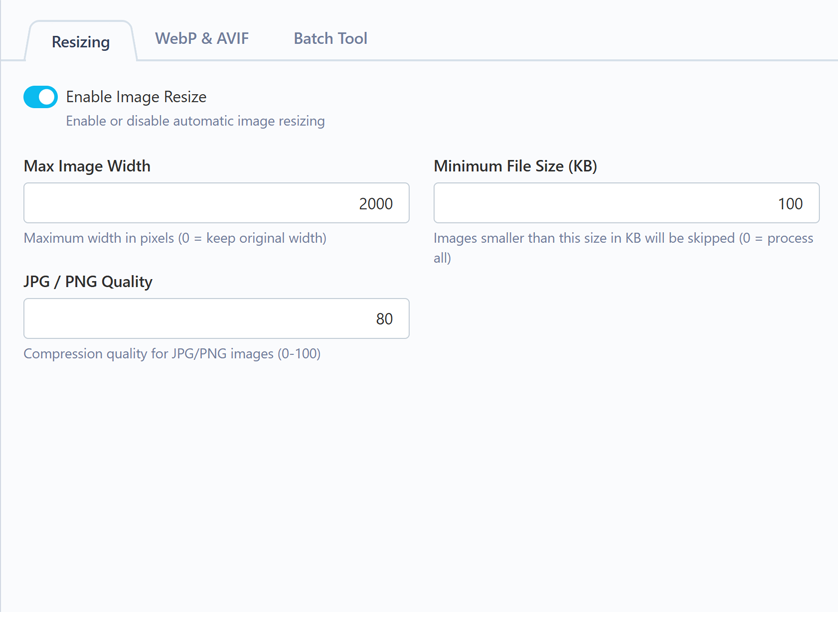
1. General Settings (Resizing Tab)
- Enable Image Resize: Enable or disable automatic image processing globally.
- Max Image Width: Maximum allowed image width in pixels (default:
2000px). - Minimum File Size (KB): Skip images smaller than this threshold (e.g.,
50 KB). - JPG / PNG Quality: Compression quality percentage for original formats (
0-100, default:85%).
2. Media Library Settings (Media Library Tab)
- Process Media Library Uploads: Enable or disable automatic resizing, optimization, and WebP/AVIF format conversion for images uploaded via the October CMS Media Library (
storage/app/media).
3. Format Conversion (WebP & AVIF Tab)
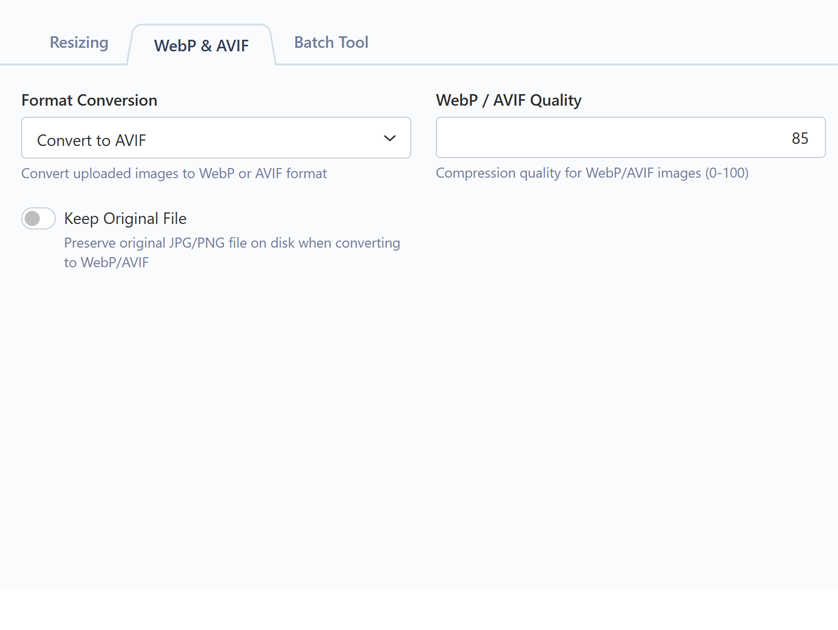
- Format Conversion: Choose
Keep Original Format,Convert to WebP, orConvert to AVIF(requires PHP 8.1+ GD). - WebP / AVIF Quality: Compression quality percentage for converted formats (
0-100, default:80%). - Keep Original File: Enable to preserve the original JPG/PNG file on disk alongside the converted image.
Batch Optimization Tools
Re-process and optimize all existing images across your entire system (Database attachments & Media Library).
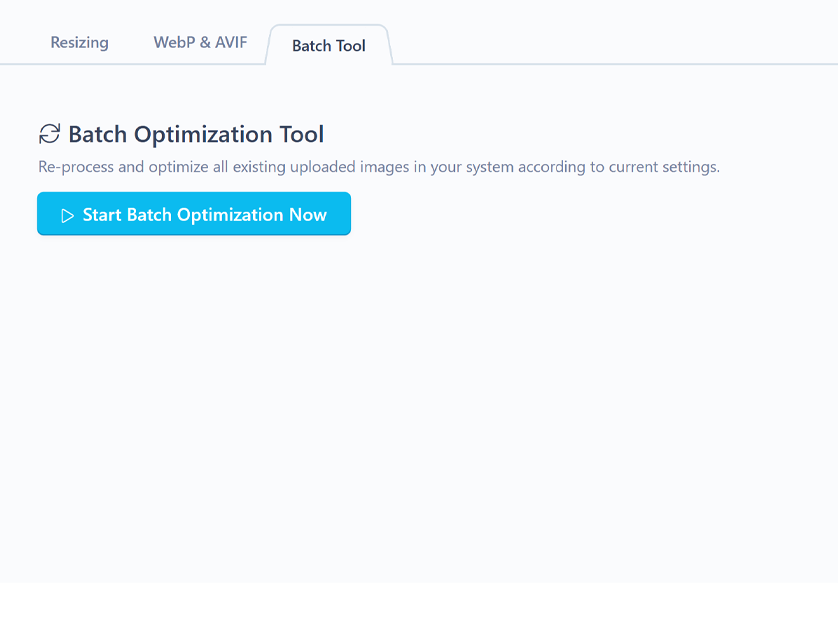
Option A: Backend UI Progress Bar (Batch Tool Tab)
- Go to Settings -> Image Resize Settings -> Batch Tool.
- Click Start Batch Optimization Now.
- A real-time progress bar will display processing progress, file names, and total disk space saved (MB).
Option B: Terminal / Artisan Command
Run the following command in your terminal to batch-process all existing images:
php artisan imageresize:process
-
This plugin has not been reviewed yet.
-
| 1.2.0 |
Added Media Library upload integration (media.file.upload event) Aug 12, 2026 |
|---|---|
| 1.1.0 |
Added AVIF format conversion support (PHP 8.1+ GD) Jul 29, 2026 |
| 1.0.5 |
Added error handling with try/catch blocks Jan 07, 2026 |
| 1.0.4 |
Added settings permissions May 28, 2025 |
| 1.0.3 |
Add image size control Mar 20, 2025 |
| 1.0.2 |
fix resizer Mar 20, 2025 |
| 1.0.1 |
First version of ImageResize Jan 21, 2025 |
Upgrading to Version 1.2.0
Upgrading to v1.2.0 is fully automated, seamless, and 100% backward compatible. No manual database migrations or breaking changes are involved.
What's New in v1.2.0
- Media Library Integration: Automatic image resizing, EXIF rotation, and WebP/AVIF format conversion are now supported for uploads via the October CMS Media Library (
storage/app/media). - Media Library Settings: A new Media Library tab has been added to Backend Settings. Media Library uploads are enabled by default.
- Unified Batch Optimization: The interactive Batch Tool and
php artisan imageresize:processCLI command now re-process both Database attachments and Media Library files.
Upgrade Steps
- Perform standard plugin update via October CMS Backend (Settings -> Updates) or Composer:
composer update stheme/imageresize-plugin