

Proprietary License
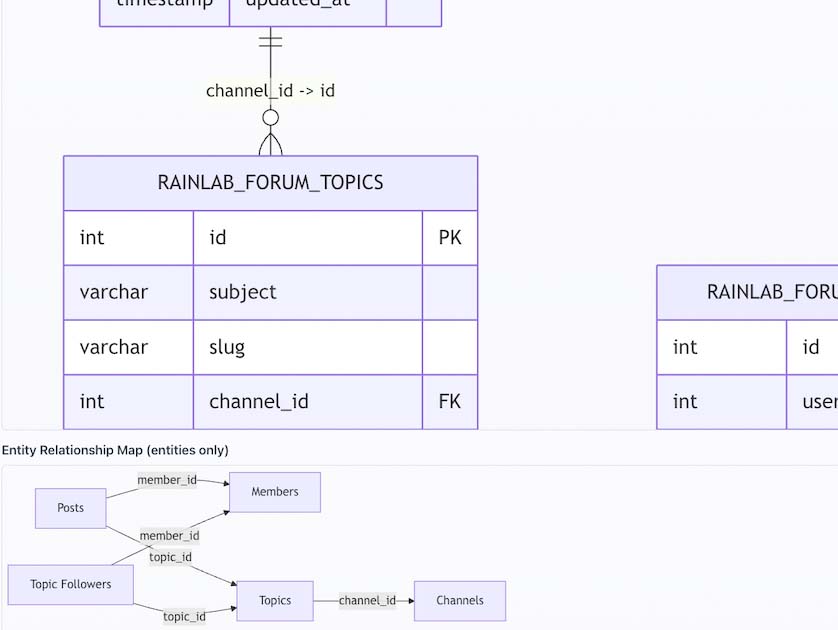
Copyright (c) 2026 Dilexus Infotech Developed by Chatura Dilan Perera
All rights reserved.
This software and associated documentation files (the "Software") are the proprietary property of Dilexus Infotech. The Software is licensed, not sold.
Terms and Conditions
-
Ownership: The Software and all intellectual property rights therein are and shall remain the exclusive property of Dilexus Infotech.
-
Usage: This Software is provided for use only by authorized parties with explicit written permission from Dilexus Infotech.
-
Restrictions: You may not:
- Copy, modify, or distribute the Software without explicit written permission
- Reverse engineer, decompile, or disassemble the Software
- Remove or alter any proprietary notices or labels on the Software
- Transfer, sublicense, lease, lend, or rent the Software to any third party
-
Confidentiality: The Software contains confidential and proprietary information of Dilexus Infotech. You agree to maintain the confidentiality of the Software.
-
No Warranty: THE SOFTWARE IS PROVIDED "AS IS", WITHOUT WARRANTY OF ANY KIND, EXPRESS OR IMPLIED, INCLUDING BUT NOT LIMITED TO THE WARRANTIES OF MERCHANTABILITY, FITNESS FOR A PARTICULAR PURPOSE AND NONINFRINGEMENT.
-
Limitation of Liability: IN NO EVENT SHALL DILEXUS INFOTECH OR THE DEVELOPER BE LIABLE FOR ANY CLAIM, DAMAGES OR OTHER LIABILITY, WHETHER IN AN ACTION OF CONTRACT, TORT OR OTHERWISE, ARISING FROM, OUT OF OR IN CONNECTION WITH THE SOFTWARE OR THE USE OR OTHER DEALINGS IN THE SOFTWARE.
For licensing inquiries, please contact Dilexus Infotech.
Developer: Chatura Dilan Perera LinkedIn: https://www.linkedin.com/in/chaturadilan/
Installation via Command Line
php artisan plugin:install Dilexus.Dataview
DataView Plugin Documentation
Complete guide for installing, configuring, and using the DataView plugin for October CMS.
Table of Contents
- Introduction
- System Requirements
- Installation
- Getting Started
- Features
- User Interface Guide
- Permissions
- Import & Export
- Settings Configuration
- Troubleshooting
- FAQ
- Support
Introduction
DataView is a professional database management plugin for October CMS that provides a comprehensive interface for viewing, editing, importing, and exporting data from all plugin database tables. It eliminates the need for phpMyAdmin or manual SQL queries, making database management accessible to both developers and non-technical users.
Key Benefits
- Time-Saving: Manage database operations directly from the October CMS backend
- User-Friendly: Intuitive interface suitable for all skill levels
- Secure: Role-based permissions and secure file handling
- Efficient: Bulk operations for import/export of multiple tables
- Flexible: Works with any October CMS plugin's database tables
System Requirements
- October CMS: Version 3.x or higher
- PHP: Version 8.0 or higher
- Database: MySQL/MariaDB or PostgreSQL
- Disk Space: Minimal (approximately 2MB)
- Memory: Standard October CMS requirements
Installation
Via October CMS Backend
- Navigate to Settings > Updates & Plugins
- Click Install Plugins
- Search for "DataView"
- Click Install
- Navigate to Settings > DataView Settings to configure
- Assign permissions to user roles as needed
Getting Started
First-Time Setup
-
Access DataView:
- Option A: Click DataView in the main backend menu
- Option B: Go to Settings > DataView Settings and use quick access buttons
-
Select a Plugin:
- Choose a plugin from the dropdown menu
- View all its database tables
-
Explore Tables:
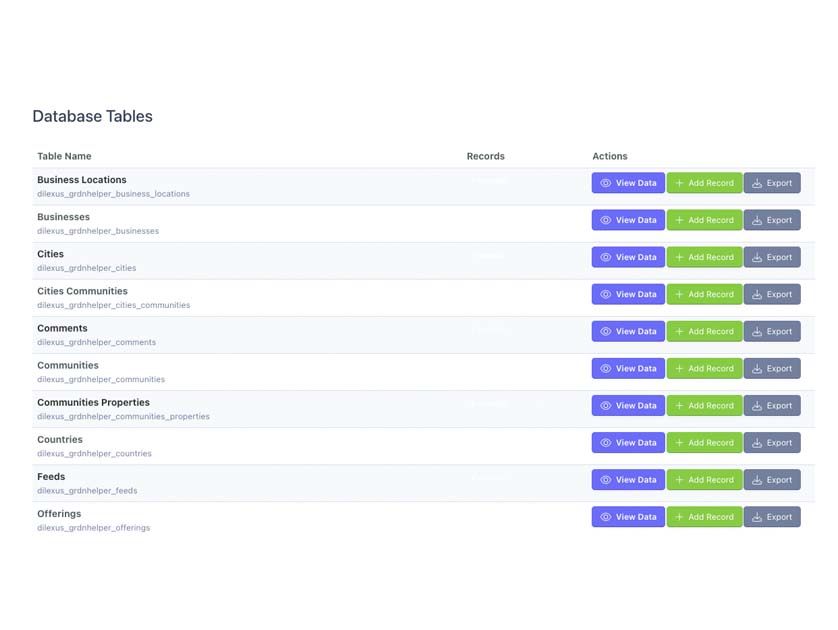
- Click View Data to browse records
- Use Add Record to create new entries
- Click Export to download table data
Quick Navigation
- Main Dashboard: Lists all plugins with database tables
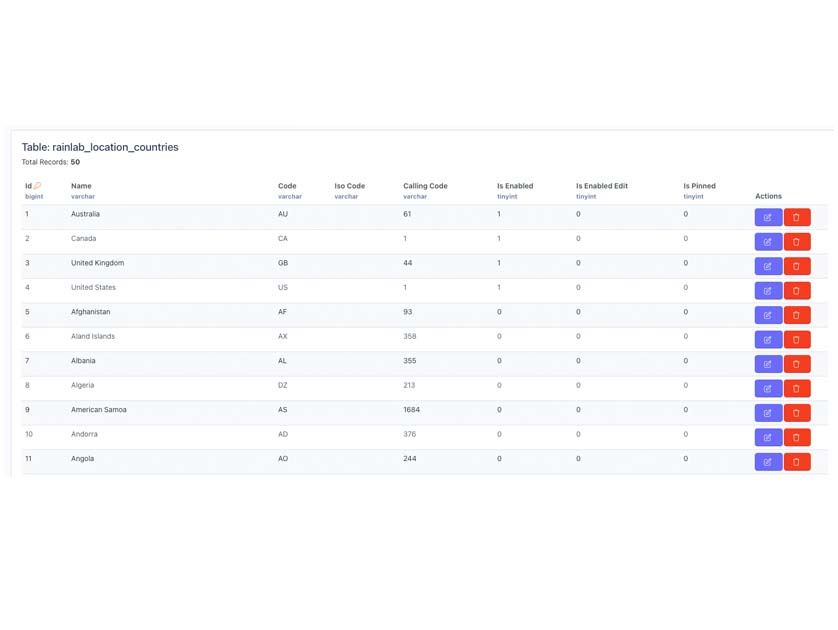
- Table View: Shows records with pagination
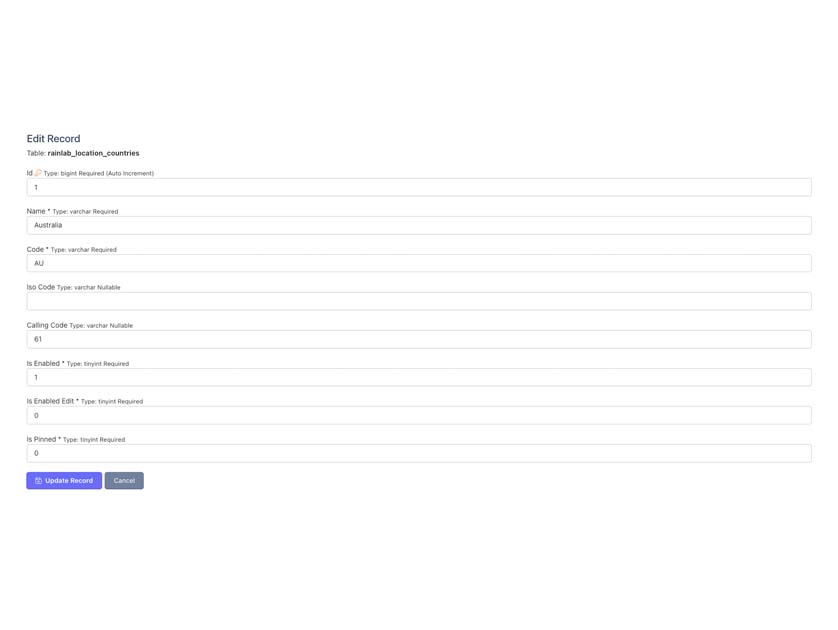
- Edit Record: Form interface for creating/updating records
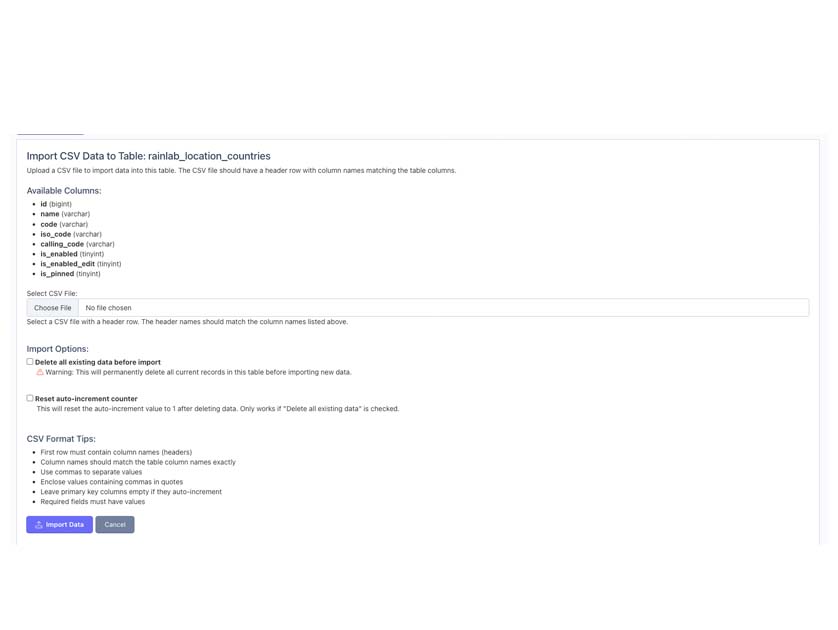
- Import: Upload CSV files to populate tables
- Export: Download table data as CSV
- Settings: Configure plugin behavior
Features
1. Database Table Browser
Browse all database tables from installed plugins:
- Table Listing: View all tables with display names
- Record Count: See the number of records in each table
- Search: Quickly find tables using the search box
- Table Information: View column names, types, and constraints
2. CRUD Operations
Create Records:
- Click Add Record from table view
- Fill in the form with required fields
- Submit to create a new record
Read Records:
- Browse all records in a table
- View column details and data types
- See primary keys highlighted
Update Records:
- Click Edit icon next to any record
- Modify field values
- Save changes
Delete Records:
- Click Delete icon next to any record
- Confirm deletion in dialog
- Record is permanently removed
3. Import Data
Single Table Import
- Navigate to table view
- Click Import CSV
- Select CSV file
- Configure import options:
- Delete existing data: Removes all current records first
- Reset auto-increment: Resets ID counter to 1
- Click Import Data
Bulk Import (Multiple Tables)
- Select a plugin
- Click Import All Tables
- Upload ZIP file containing CSV files
- Each CSV file should be named after its table (e.g.,
users.csv) - Click Import All Tables
Import Options Explained
Delete Existing Data:
- Removes all records from the table before importing
- Useful for fresh data loads
- Cannot be undone
Reset Auto-Increment:
- Resets the auto-increment counter to 1
- Only works when "Delete existing data" is checked
- Ensures IDs start from 1 after import
4. Export Data
Single Table Export
- Navigate to table view
- Click Export CSV
- File downloads immediately with all records
Bulk Export (Multiple Tables)
- Select a plugin
- Click Export All Tables
- Downloads ZIP file with all table CSVs
- Each table is saved as
tablename.csv
5. Search and Filter
Table Search:
- Use search box on main page
- Real-time filtering as you type
- Searches both display names and table names
6. Permissions System
Fine-grained control over user access:
- Access Tables: View database tables and records
- Access Plugins: View plugin manager
- Manage Data: Create, update, and import records
- Delete Records: Delete individual records
User Interface Guide
Main Dashboard
┌─────────────────────────────────────────────┐
│ Select Plugin: [Dropdown]                   │
│                                              │
│ [Export All Tables] [Import All Tables]     │
├─────────────────────────────────────────────┤
│ Search: [_______________]                   │
├─────────────────────────────────────────────┤
│ Database Tables                             │
│ ┌─────────────────────────────────────────┐ │
│ │ Table Name    │ Records │ Actions       │ │
│ │ users         │ 150     │ [View][Add]   │ │
│ │ posts         │ 542     │ [View][Add]   │ │
│ └─────────────────────────────────────────┘ │
└─────────────────────────────────────────────┘
Table View
┌─────────────────────────────────────────────┐
│ [Back] [Add Record] [Import] [Export]       │
├─────────────────────────────────────────────┤
│ Table: users (150 records)                  │
├─────────────────────────────────────────────┤
│ ID │ Name       │ Email         │ Actions  │
│ 1  │ John Doe   │ john@...      │ [✎] [×] │
│ 2  │ Jane Smith │ jane@...      │ [✎] [×] │
└─────────────────────────────────────────────┘
Edit/Create Record Form
┌─────────────────────────────────────────────┐
│ Edit Record                                 │
├─────────────────────────────────────────────┤
│ Field Name     [input field]                │
│ Email          [input field]                │
│ Status         [dropdown]                   │
├─────────────────────────────────────────────┤
│ [Save] [Cancel]                             │
└─────────────────────────────────────────────┘
Permissions
Assigning Permissions
- Go to Settings > Administrators > Manage Roles
- Select or create a role
- Find DataView permissions section
- Check desired permissions
- Save role
Permission Details
| Permission | Description | Allows |
|---|---|---|
| Access Tables | Basic viewing rights | View tables, browse records |
| Access Plugins | Plugin manager access | View plugin information |
| Manage Data | Edit capabilities | Create records, update records, import data |
| Delete Records | Deletion rights | Delete individual records |
Recommended Permission Sets
Developer Role:
- ✓ Access Tables
- ✓ Access Plugins
- ✓ Manage Data
- ✓ Delete Records
Content Manager Role:
- ✓ Access Tables
- ✓ Manage Data
- ✗ Delete Records (optional)
Viewer Role:
- ✓ Access Tables
- ✗ All other permissions
Import & Export
CSV Format Requirements
Structure:
- First row MUST contain column headers
- Column names MUST match table column names exactly
- Use commas as field separators
- Enclose values containing commas in quotes
Example CSV:
id,name,email,status,created_at
1,John Doe,john@example.com,active,2026-01-01 10:00:00
2,Jane Smith,jane@example.com,active,2026-01-02 11:30:00
Best Practices
Exporting:
- Export before making major changes (backup)
- Use bulk export for migrating entire plugins
- Keep exports organized by date
Importing:
- Test with small datasets first
- Review error messages carefully
- Use "Delete existing data" for clean imports
- Backup before importing large datasets
Common CSV Issues
Issue: Import fails with "column not found" Solution: Ensure CSV headers match exact column names (case-sensitive)
Issue: Special characters display incorrectly Solution: Save CSV with UTF-8 encoding
Issue: Date/time values not importing
Solution: Use format: YYYY-MM-DD HH:MM:SS
Settings Configuration
Accessing Settings
Navigate to Settings > DataView Settings
Available Settings
Show in Backend Menu:
- Toggle DataView menu item visibility
- When disabled, access via Settings page only
- Default: Enabled
Quick Access Buttons
Settings page includes quick access to:
- View Database Tables: Direct access to main interface
- Plugin Manager: View installed plugins
Troubleshooting
Common Issues
Plugin Not Appearing in Menu
Possible Causes:
- Backend menu visibility is disabled in settings
- User lacks required permissions
- Cache not cleared after installation
Solutions:
- Check Settings > DataView Settings and enable menu
- Assign "Access Tables" permission to user role
- Run
php artisan cache:clear
Cannot Import CSV
Error: "Please select a valid CSV file" Solution:
- Ensure file extension is
.csv - Check file is not corrupted
- Try re-saving CSV with UTF-8 encoding
Error: "Column not found" Solution:
- Verify CSV headers match table column names
- Check for extra spaces in column names
- Ensure case matches exactly
Table Shows 0 Records But Data Exists
Solution:
- Clear October CMS cache
- Check database connection
- Verify table permissions in database
Import Partially Succeeds
Cause: Invalid data in some rows Solution:
- Check error messages for specific row numbers
- Validate data types match column requirements
- Ensure required fields have values
Performance Issues
Slow Table Loading:
- Large tables may take time to load
- Pagination is automatic for 50+ records
- Consider exporting/importing in batches
Import Timeout:
- For large CSV files, increase PHP timeout
- Import in smaller batches
- Consider using database tools for very large datasets
FAQ
General Questions
Q: Is DataView compatible with all plugins? A: Yes, DataView works with any October CMS plugin that uses database tables.
Q: Can I use this on production sites? A: Yes, DataView is production-ready with proper permission controls.
Q: Does it work with custom database tables? A: Yes, if the tables are registered through October CMS plugins.
Feature Questions
Q: Can I export only specific records? A: Currently, exports include all records in a table. Filter data in spreadsheet software after export.
Q: What file formats are supported for import? A: CSV for individual tables, ZIP containing CSV files for bulk import.
Q: Can I schedule automatic exports? A: Not built-in, but you can use October CMS scheduled tasks with DataView's methods.
Q: Is there a record limit? A: No hard limit, but large tables (100K+ records) may require pagination.
Security Questions
Q: Is my data secure? A: Yes, DataView respects October CMS permissions and uses secure file handling.
Q: Can I restrict access to specific tables? A: Use role-based permissions to control overall access. Table-specific restrictions require custom development.
Q: Are file uploads validated? A: Yes, only CSV and ZIP files are accepted, with validation for file structure.
Technical Questions
Q: Does it work with PostgreSQL? A: Yes, DataView supports both MySQL/MariaDB and PostgreSQL.
Q: Can I extend DataView functionality? A: Yes, the plugin follows October CMS standards and can be extended.
Q: What happens to exports after download? A: Temporary files are automatically cleaned up. Exports are not stored permanently.
Support
Documentation & Resources
- Official Documentation: This file
- GitHub Repository: https://github.com/dilexus/dilexus-dataview-plugin
- License: See LICENSE.md
Getting Help
Before Contacting Support:
- Check this documentation
- Review Troubleshooting section
- Check FAQ section
- Clear cache and try again
Reporting Issues:
When reporting issues, include:
- October CMS version
- PHP version
- Database type and version
- Description of the issue
- Steps to reproduce
- Expected vs actual behavior
- Any error messages
Enterprise Support:
For enterprise support, custom development, or priority assistance, contact:
- Company: Dilexus Infotech
- Developer: Chatura Dilan Perera
- LinkedIn: https://www.linkedin.com/in/chaturadilan/
Appendix
Keyboard Shortcuts
Currently, DataView uses standard October CMS keyboard shortcuts:
Ctrl/Cmd + S: Save formEsc: Close dialogs
Database Table Structure
DataView reads standard October CMS table structures:
- Primary keys are automatically detected
- Auto-increment fields are identified
- Column types are displayed
- Required fields are indicated
File Size Limits
Import file size limits depend on PHP configuration:
- Check
upload_max_filesizein php.ini - Check
post_max_sizein php.ini - Recommended: 64MB or higher for large imports
Changelog
See main README.md for version history.
License
Copyright © 2026 Dilexus Infotech. All rights reserved.
This is proprietary software. Unauthorized copying, distribution, or use is strictly prohibited.
Developer: Chatura Dilan Perera LinkedIn: https://www.linkedin.com/in/chaturadilan/
Last Updated: January 24, 2026
-
This plugin has not been reviewed yet.
-
| 1.1.3 |
Add interactive pan and zoom to ERD visualizer Feb 24, 2026 |
|---|---|
| 1.1.2 |
Restore minimal composer.json format per OctoberCMS publishing docs Feb 22, 2026 |
| 1.1.1 |
Fix composer.json for OctoberCMS marketplace compatibility Feb 22, 2026 |
| 1.1.0 |
Add pagination functionality to DataView table listings Feb 22, 2026 |
| 1.0.1 |
Initialize plugin Jan 24, 2026 |