

Amorium: Multilingual Business Theme for October CMS 4
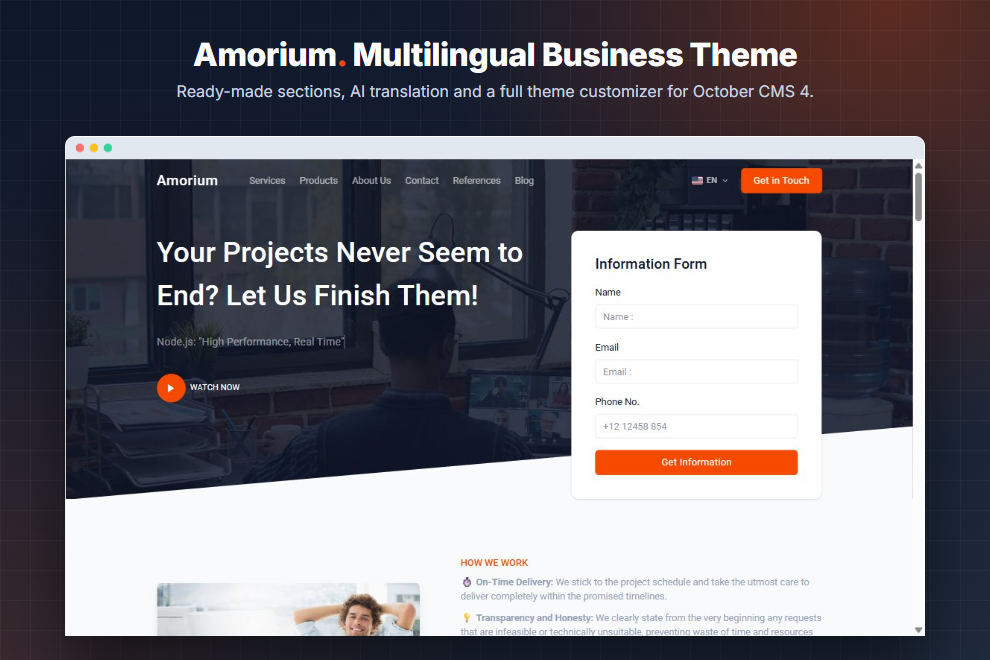
Amorium is a modern, responsive business theme built on Tailor, Tailwind CSS 4 and Flowbite. Pages are built from ready-made sections, content is translated with AI, and colors, fonts and logos are all set from the admin panel without writing code.
Install the theme, click Install Demo Content, and you have a complete four-language website in minutes.
Highlights
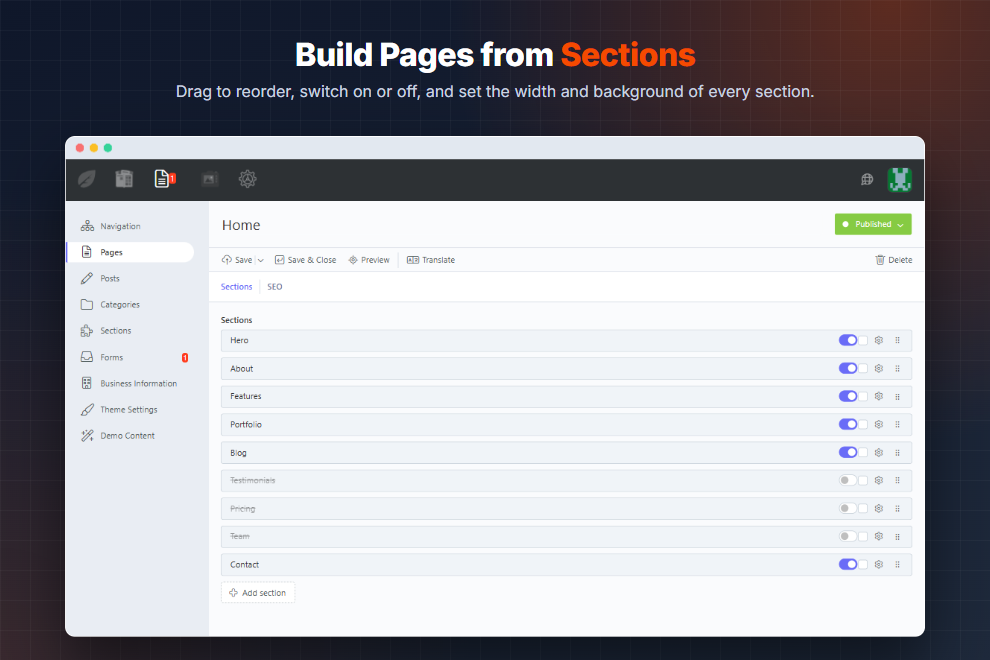
- Section-based page builder. Stack sections to build a page, drag to reorder, switch each one on or off, and choose boxed or full width with a background color.
- 13 ready-made sections. Hero, About, Features, Portfolio, Call to Action, Testimonials, Pricing, Team, Blog, Contact, Form, Before & After and Home.
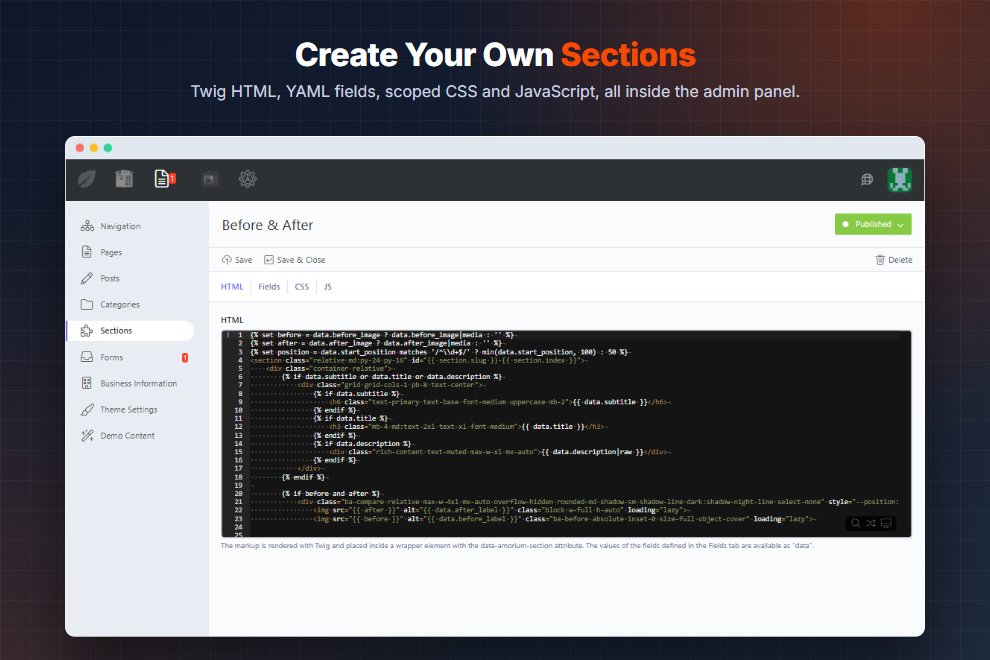
- Create your own sections in the admin panel. Every section has Twig HTML, form fields defined in YAML, CSS scoped to the section and JavaScript. Nothing to deploy.
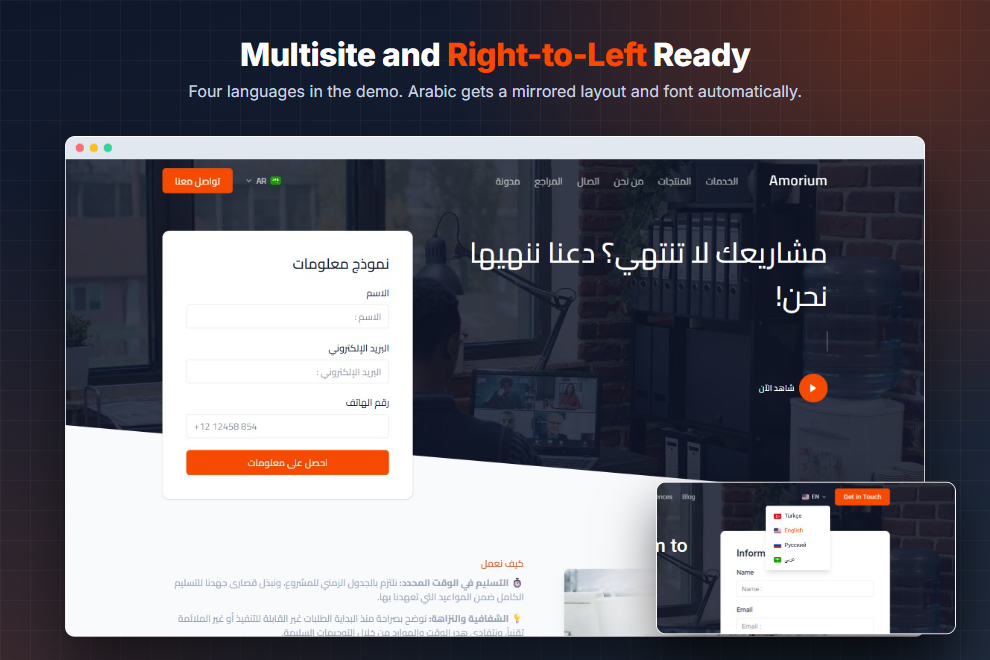
- True multisite. The demo ships with Turkish, English, Russian and Arabic sites. Right-to-left layout and an Arabic font are applied automatically.
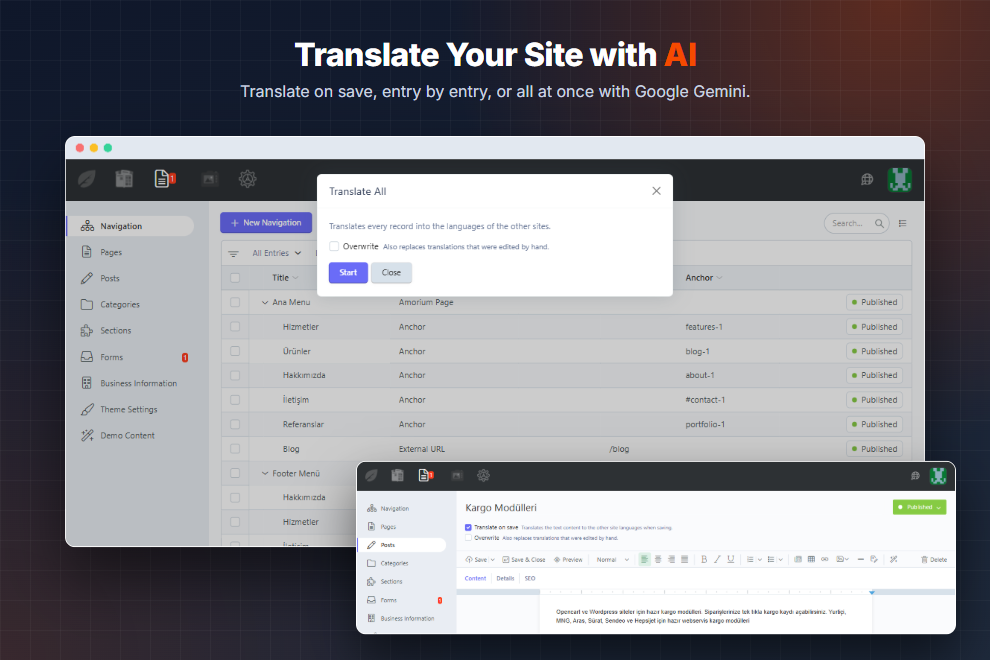
- AI translation. Translate on save, entry by entry, or all at once with a progress window. Works with Google Gemini or a self-hosted Gemma translator, and reuses earlier translations from a translation memory.
- AI review. One click in the rich editor fixes spelling and grammar and improves the text for SEO.
- Theme customizer. Logo, light logo, favicon, brand colors, a dark palette, Google Fonts for body and headings, and the base font size.
- Navigation builder. Main and footer menus up to 4 levels deep, linking to pages, external URLs or on-page anchors.
- Blog. Posts with multiple categories, featured images, excerpts, pagination, recent and related posts.
- Form inbox. Form submissions are stored in the admin panel with an unread counter and a permission setting.
- Business information. Name, phone, WhatsApp, email, address, opening hours and 8 social networks, shared across the sites of a group.
- SEO ready. Meta title and description on every page and post, plus automatic
hreflangalternate links. - One-click demo content. 4 sites, 12 pages, 54 posts, 16 categories, 44 menu items, 13 sections and 31 media files.
- Demo Website: https://amorium.teknovip.net/
Included Plugin
All theme features live in a single plugin, AmoriumCms.Amorium (amoriumcms/amorium-plugin). The theme lists it as its only dependency, so it is installed together with the theme.
| Feature | What it does |
|---|---|
| Pages | Section-based page builder with SEO fields |
| Sections | Reusable section library, Font Picker and Remix Icon form widgets |
| Posts | Blog posts and categories |
| Navigation | Multi-level menu builder |
| Forms | Form handling and submission inbox |
| Business | Business and contact information per site |
| Demo | One-click demo content installer |
| Translate | AI translation, AI review and translation memory |
Requirements
- October CMS 4
- PHP 8.2 or newer
- MySQL or MariaDB with the InnoDB engine
- A Google AI Studio (Gemini) API key, only for AI translation and review
Enabling AI Translation
Add these lines to your .env file:
TRANSLATE_ENABLED=true
TRANSLATE_MODEL="gemini-flash-latest"
TRANSLATE_API_KEY=your-google-ai-studio-key
Content is translated from the primary site to every other site. When TRANSLATE_ENABLED is off, all translation buttons are hidden.
How It Works
Building a page. Open Pages, add sections from the library, fill in their fields and drag them into order. Every section can be switched off without deleting its content.
Creating a section. Open Sections, click New Section and write the Twig markup, the fields, the CSS and the JavaScript. The new section is immediately available in the page builder.
Translating content. Write on the primary site and tick Translate on save, or open any entry on another site and click Translate. Menus and posts can be translated in bulk.
Adding a language. Create a new site in Settings → Site Definitions, run php artisan tailor:propagate, then translate the content with one click.
Support
Questions, bug reports and feature requests are welcome through the Support tab of this page.
Installation via Command Line
php artisan theme:install AmoriumCms.amorium
Getting Started
Requirements
- October CMS 4
- PHP 8.2 or newer
- MySQL or MariaDB with the InnoDB engine
- A Google AI Studio (Gemini) API key, only for AI translation and review
Installation
-
Tailor needs the InnoDB engine. Add
?engine=InnoDBto the end ofDB_URLin your.envfile:DB_URL="mysql://user:password@127.0.0.1:3306/database?engine=InnoDB"
-
Install the theme from the Marketplace. Its only dependency, the AmoriumCms.Amorium plugin, is installed with it. To install from GitHub instead:
php artisan plugin:install AmoriumCms.Amorium --from=https://github.com/AmoriumCms/plugin.git
php artisan theme:install AmoriumCms.Amorium --from=https://github.com/AmoriumCms/theme.git
-
Run the migrations and activate the theme:
php artisan october:migrate
php artisan tailor:migrate
php artisan theme:use amoriumcms-amorium
The theme is installed in
themes/amoriumcms-amoriumand the plugin inplugins/amoriumcms/amorium. -
Install the demo content from Settings → CMS → Demo Content → Install Demo Content, or run:
php artisan amorium:demo-install
Installing the demo replaces the sites, pages, posts, categories, menus, sections, business information and theme settings of the installation. Media files with the same name are overwritten.
Updating
php artisan october:update
php artisan tailor:migrate
Upgrading from the Separate Amorium Plugins
Earlier versions used eight plugins (Amorium.Pages, Amorium.Sections, Amorium.Post, Amorium.Navigation, Amorium.Form, Amorium.Business, Amorium.Demo and Amorium.Translate). They are now merged into AmoriumCms.Amorium.
- Delete the
plugins/amoriumfolder. - Install AmoriumCms.Amorium and run
php artisan october:migrate.
Pages, posts, menus, sections, form submissions, business information and the translation memory are kept. The old plugin records are removed automatically. The Demo Content and Forms pages in the admin panel moved to amoriumcms/amorium/demo and amoriumcms/amorium/submissions.
Admin Panel Overview
All Amorium content is grouped under the Amorium menu in the admin panel. Every feature below is provided by the AmoriumCms.Amorium plugin.
| Menu | Purpose |
|---|---|
| Navigation | Main and footer menus |
| Pages | Pages built from sections, with SEO fields |
| Posts | Blog posts |
| Categories | Blog categories |
| Sections | The section library used by the page builder |
| Forms | Messages sent through forms on the website |
| Business Information | Contact details, opening hours and social links |
| Theme Settings | Logo, colors and fonts |
| Demo Content | Install the demo website |
Pages
Every page is a list of sections. Open Pages, choose a page and use the Sections tab.
- Add section picks a section from the library.
- Drag the handle on the right to change the order.
- The switch turns a section off without deleting its content.
- The cog opens the section settings: Boxed or Full Width layout and a background color.
- Click a section title to open its fields.
The SEO tab holds the meta title and meta description. When they are empty, the page title is used. Alternate hreflang links to the other languages are added automatically.
Pages are arranged in a tree, so a page can have child pages.
Sections
A section is a reusable building block. Open Sections to see the library.
Create Base Sections adds the 13 included sections: Home, About, Features, Portfolio, CTA, Testimonials, Pricing, Team, Blog, Contact, Hero, Form and Before & After. Existing sections with the same slug are skipped, so your changes are kept.
Every section has four tabs.
HTML
The markup is rendered with Twig. Two variables are available:
| Variable | Content |
|---|---|
data |
The values entered in the section fields on the page |
section |
id, title, slug and index (position on the page) |
Useful filters for field values:
|mediaturns a media finder value into a URL.|linkturns a page finder value into a URL in the current language.|_translates fixed text through the theme language files.
Example:
{% set image = data.image ? data.image|media : '' %}
{% set url = data.button_link ? data.button_link|link : '' %}
<section id="{{ section.slug }}-{{ section.index }}" class="py-16">
    <div class="container">
        <h2 class="text-2xl font-medium">{{ data.title }}</h2>
        {% if image %}<img src="{{ image }}" alt="{{ data.title }}">{% endif %}
        {% if url %}<a href="{{ url }}" class="text-primary">{{ data.button_text }}</a>{% endif %}
    </div>
</section>
All Tailwind CSS 4 utility classes compiled in the theme can be used, together with the theme colors such as bg-primary, text-muted and bg-surface.
Fields
The form shown on the page is defined in YAML with the standard October CMS form field syntax. Tabs, repeaters and all standard field types are supported, plus:
| Field type | Purpose |
|---|---|
mediafinder |
Image or file from the media library |
pagefinder |
Link to a page, post or URL |
remixicon |
Icon picker for the Remix Icon set |
Add translatable: false to a field that should not be sent to the AI translator, such as a video ID or a number.
image:
    label: Image
    type: mediafinder
    mode: image
    maxItems: 1

title:
    label: Title
    type: text
    default: Our Company Story

button_link:
    label: Button Link
    type: pagefinder
    span: left

button_text:
    label: Button Text
    type: text
    span: right

video:
    label: YouTube Video
    type: text
    translatable: false
CSS
The CSS is automatically scoped to the section, so it never affects other sections. Use & to refer to the section itself:
& h2 {
    letter-spacing: -0.02em;
}

.dark & h2 {
    color: var(--color-night-body);
}
JavaScript
The script runs once for every copy of the section on the page. The root variable is the section element, and return stops the script:
var button = root.querySelector('.toggle');
if (!button) {
    return;
}

button.addEventListener('click', function () {
    root.classList.toggle('is-open');
});
Copying Sections to Other Sites
New sections can only be created on the primary site. On any other site, Copy Content from Primary Site copies the HTML, fields, CSS and JavaScript.
Forms
The Form section builds a form from a list of fields entered on the page. Field types: text, email, number, textarea, select, radio and checkbox. Submissions are listed under Forms, with an unread counter in the menu.
To add a form to your own section, call amoriumForm(data, section). The field definitions are encrypted into a token, so visitors cannot add or rename fields.
{% set form = amoriumForm(data|merge({
    form_name: 'Quote Request',
    fields: [
        { label: 'Name'|_, type: 'text', required: true },
        { label: 'Email'|_, type: 'email', required: true },
        { label: 'Message'|_, type: 'textarea' }
    ]
}), section) %}

<form method="post" action="{{ form.action }}">
    <input type="hidden" name="_form" value="{{ form.token }}">
    <input type="hidden" name="_token" value="{{ form.csrf }}">
    <input type="text" name="website" class="hidden" tabindex="-1" autocomplete="off">

    {% for field in form.fields %}
        <label>{{ field.label }}</label>
        {% if field.type == 'textarea' %}
            <textarea name="{{ field.name }}" {{ field.required ? 'required' }}></textarea>
        {% else %}
            <input type="{{ field.type }}" name="{{ field.name }}" {{ field.required ? 'required' }}>
        {% endif %}
    {% endfor %}

    <button type="submit">{{ 'Send'|_ }}</button>
</form>
The hidden website input is a spam trap and must stay empty. The included Form and Contact sections send the form with JavaScript and show validation messages without reloading the page; use them as a starting point.
Who can read submissions is controlled by the View and delete form submissions permission in the Forms group of the administrator roles.
Posts and Categories
Posts have a title, a rich editor for the content, an excerpt, a featured image, multiple categories and their own SEO fields. The blog list and post pages are part of the theme, with pagination, a recent posts sidebar and related posts.
The AI review button (magic wand) in the rich editor fixes spelling and grammar and improves the text for SEO. It requires AI translation to be enabled.
Navigation
Menus are managed under Navigation as a tree up to 4 levels deep. The demo includes a Main Menu and a Footer Menu.
| Link type | Behavior |
|---|---|
| Amorium Page | Links to a page and always uses the URL of the current language |
| External URL | Full URLs are used as entered. Relative URLs such as /blog get the language prefix automatically |
| Anchor | Scrolls to a section on the page, for example contact-1 |
Section anchors follow the pattern {section-slug}-{position}, for example about-1 or features-1.
Business Information
Open Business Information to enter the business name, phone, WhatsApp, email, address, opening hours and links to Facebook, Instagram, X, YouTube, LinkedIn, TikTok, Pinterest and Telegram.
The details belong to the site selected in the site switcher. Phone, email, WhatsApp, opening hours and social links are kept in sync across sites in the same group, while the business name and address can be different for each site.
Use the business() function to show the details in your own sections or partials:
{% set info = business() %}

{% if info.phone %}
    <a href="tel:{{ info.phone }}">{{ info.phone }}</a>
{% endif %}

{% for link in info.social_links %}
    <a href="{{ link.url }}">{{ link.network }}</a>
{% endfor %}

{% for day in info.hours %}
    {{ day.day }}: {{ day.is_closed ? 'Closed'|_ : day.opens_at ~ ' - ' ~ day.closes_at }}
{% endfor %}
Theme Settings
Open Theme Settings, or Settings → Site Theme → Customize.
| Tab | Settings |
|---|---|
| General | Logo, light logo for dark backgrounds, logo height, favicon, back-to-top button |
| Color | Primary and hover colors, text colors, page and surface backgrounds, footer colors, success and error colors, and a full dark palette |
| Typography | Body font, heading font and base font size |
Colors are output as CSS variables, so every section follows them automatically. Fonts are chosen from the full Google Fonts catalog with a live preview and are served from Bunny Fonts.
Multisite and Languages
Amorium uses the multisite feature of October CMS. Every site is one language, and the demo includes Turkish (primary), English, Russian and Arabic.
Adding a Language
-
Go to Settings → Site Definitions and create a new site with its locale and URL prefix.
-
Copy the content structure to the new site:
php artisan tailor:propagate
-
Translate the content with AI, or edit it by hand.
Right-to-left languages such as Arabic, Persian, Hebrew and Urdu get a mirrored layout and the Cairo font automatically.
Translating Theme Text
Fixed text in the theme, such as "Read More", is written in English and translated through themes/amoriumcms-amorium/lang/{locale}.json. To add a language, copy tr.json, rename it to the new locale and translate the values:
{
    "Read More": "Devamını Oku",
    "Service :number": "Hizmet :number"
}
AI Translation
Configuration
Add these lines to your .env file:
TRANSLATE_ENABLED=true
TRANSLATE_MODEL="gemini-flash-latest"
TRANSLATE_API_KEY=your-google-ai-studio-key
Optional settings:
| Variable | Default | Purpose |
|---|---|---|
TRANSLATE_TIMEOUT |
120 |
Request timeout in seconds |
TRANSLATE_BATCH_CHARS |
20000 |
Maximum characters sent in one request |
TRANSLATE_VERIFY_SSL |
true |
Verify the SSL certificate of the API |
TRANSLATE_GEMINI_API_URL |
Google API | Gemini endpoint |
TRANSLATE_GEMMA_API_URL |
empty | Endpoint of a self-hosted Gemma translator |
When TRANSLATE_ENABLED is off, all translation buttons are hidden.
The settings are read in plugins/amoriumcms/amorium/config/translate.php. To override them without editing the plugin, copy the file to config/amoriumcms/amorium/translate.php. In code, read them with Config::get('amoriumcms.amorium::translate.model').
Ways to Translate
Content is always translated from the primary site to the other sites.
- Translate on save. On the primary site, tick Translate on save above the form. The entry is translated into every other language when you save. Overwrite also replaces translations that were edited by hand.
- Translate button. Open an entry on any other site and click Translate. Choose whether to overwrite the existing text or fill in only the empty fields.
- Bulk translation. Translate All in Navigation and Translate Selected in Posts translate many entries at once and show the progress in a window.
- AI review. The magic wand button in the rich editor corrects and improves the text in its current language.
Translations are stored in a translation memory, so text that has already been translated is reused instead of being sent to the API again.
Demo Content
Settings → CMS → Demo Content shows what the demo contains and installs it with one click. The same can be done from the command line:
php artisan amorium:demo-install
The demo includes 4 sites, 12 pages, 54 posts, 16 categories, 44 menu items, 13 sections and 31 media files.
Troubleshooting
Tables are missing when installing the demo. Run php artisan tailor:migrate, then install the demo again.
Tailor tables cannot be created. Make sure DB_URL ends with ?engine=InnoDB. MyISAM tables are not supported.
A new language shows empty pages. Run php artisan tailor:propagate after adding a site, then translate the content.
Translation buttons are not visible. Check that TRANSLATE_ENABLED=true and TRANSLATE_API_KEY are set in .env, then clear the cache with php artisan cache:clear.
A section shows nothing on the page. Check that the section is switched on in the page builder. With APP_DEBUG=true, Twig errors in the section HTML are shown on the page; otherwise they are written to the log.
-
This theme has not been reviewed yet.
-
| 1.4.0 |
Package created on 2026-10-12 Oct 11, 2026 |
|---|---|
| 1.3.0 |
Package created on 2026-10-12 Oct 11, 2026 |
| 1.2.0 |
Package created on 2026-10-12 Oct 11, 2026 |
| 1.1.0 |
Package created on 2026-10-11 Oct 11, 2026 |
| 1.0.1 |
First version of Amorium. Oct 11, 2026 |