


ImageBox is an all-in-one image toolkit for October CMS that streamlines responsive image management in the admin panel and on the frontend.
Key Features
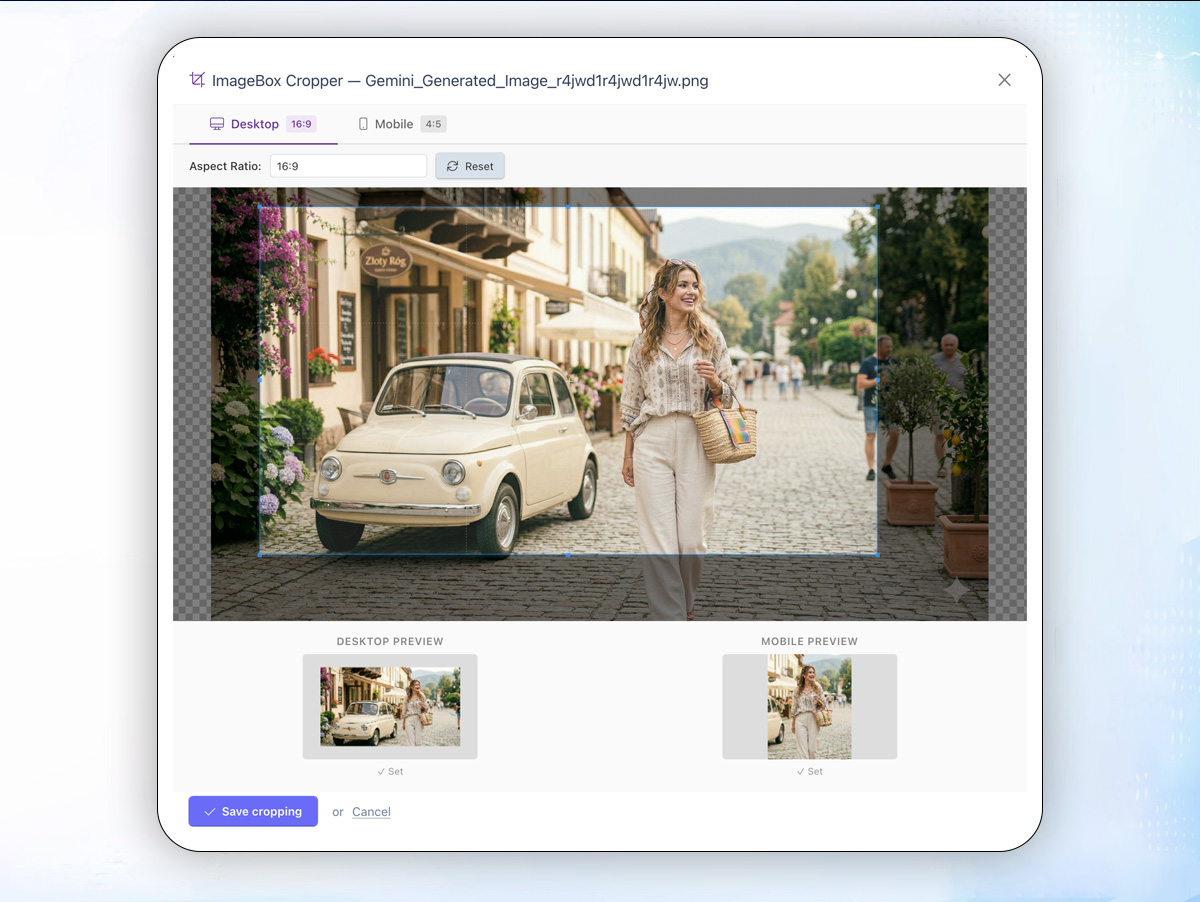
Visual Desktop & Mobile Cropping
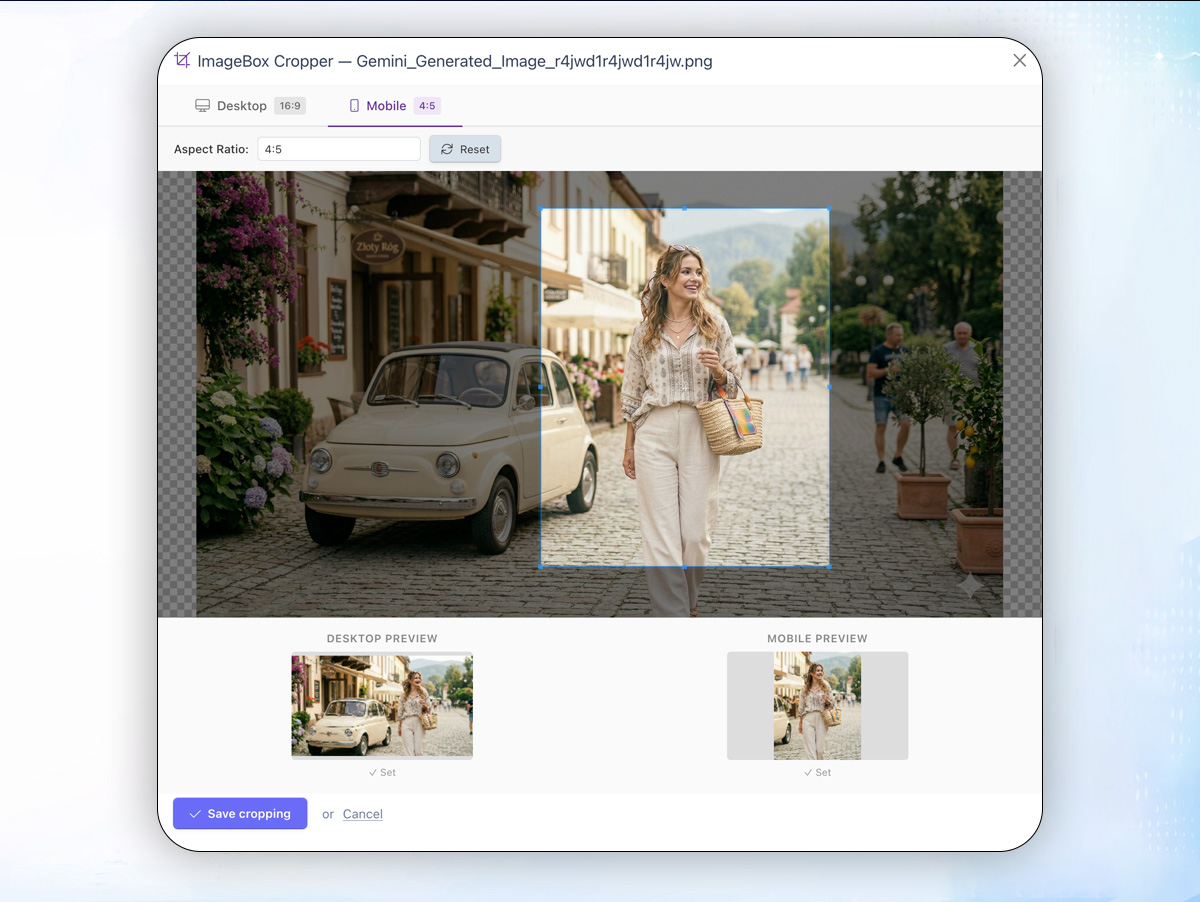
Crop images separately for desktop and mobile using a built-in Cropper.js editor. Choose from predefined aspect ratios (16:9, 4:5, 1:1, etc.) or define custom ones. Crops are generated as physical files via PHP GD — no frontend processing needed. EXIF rotation is handled automatically.
AI-Powered Image SEO
Generate alt text (title) and descriptions automatically using OpenAI Vision API (GPT-4o / GPT-4o Mini). Supports 5 languages: English, Polish, German, French, and Spanish. Enforce keywords at the start of titles and naturally within descriptions. Add custom instructions to fine-tune AI output. Works on localhost via base64 encoding — no public URL required.
Responsive <picture> Output
The responsive_image() Twig function outputs a <picture> element with <source> tags that switch between desktop and mobile crops based on viewport width and device orientation. Falls back to a single <img> when only one variant exists.
SEO-Friendly Image URLs
Optionally serve images through human-readable URLs like /ri/42-modern-white-kitchen-2000x1000-desktop.jpg. Slug generated from the file title or description (configurable). Responses include Cache-Control: immutable headers.
Uploads Manager
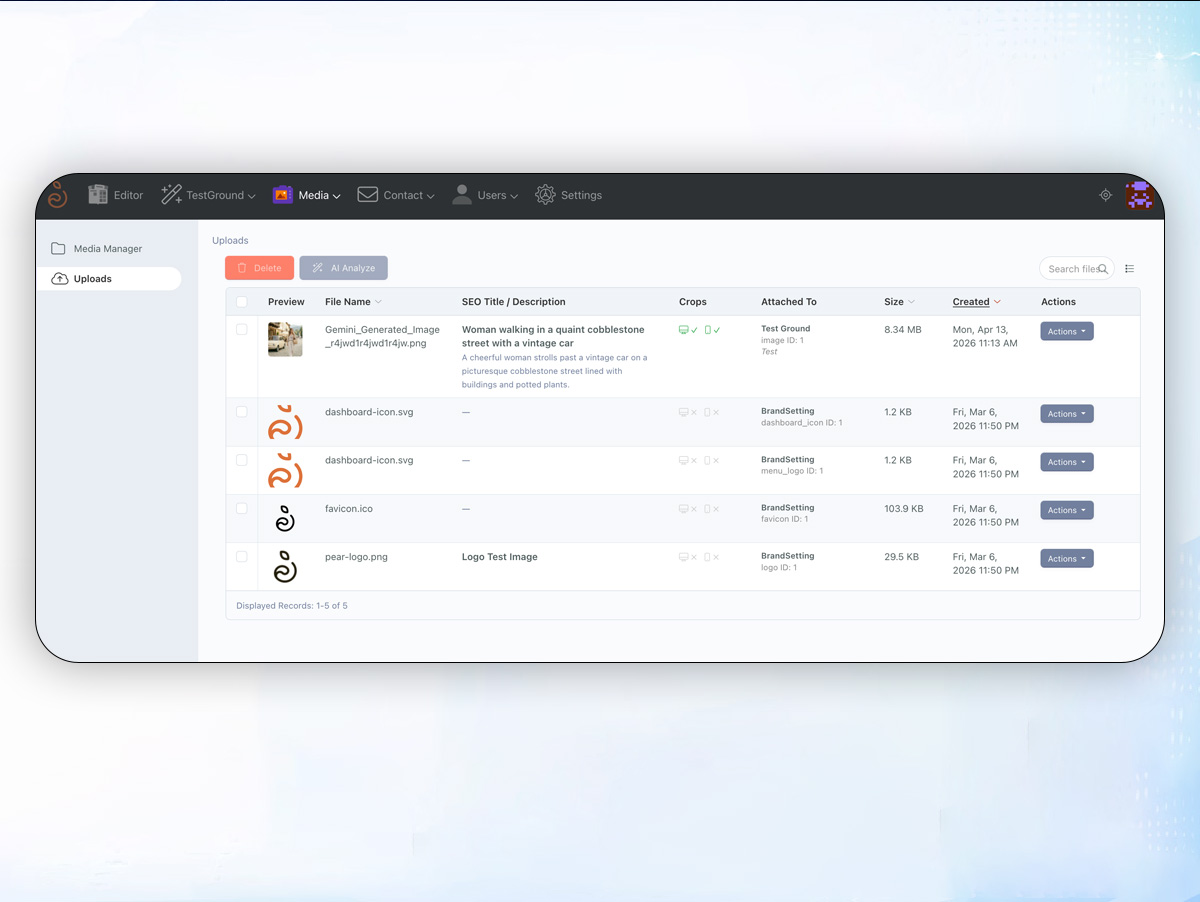
A dedicated Backend → Media → Uploads page lists all uploaded files with thumbnails, SEO metadata, crop status indicators, and attachment info. Per-row actions include AI Analyze, Crop, Replace (swap file while preserving ID), and Delete. Bulk actions for delete and AI analysis are also available.
Debug Overlay
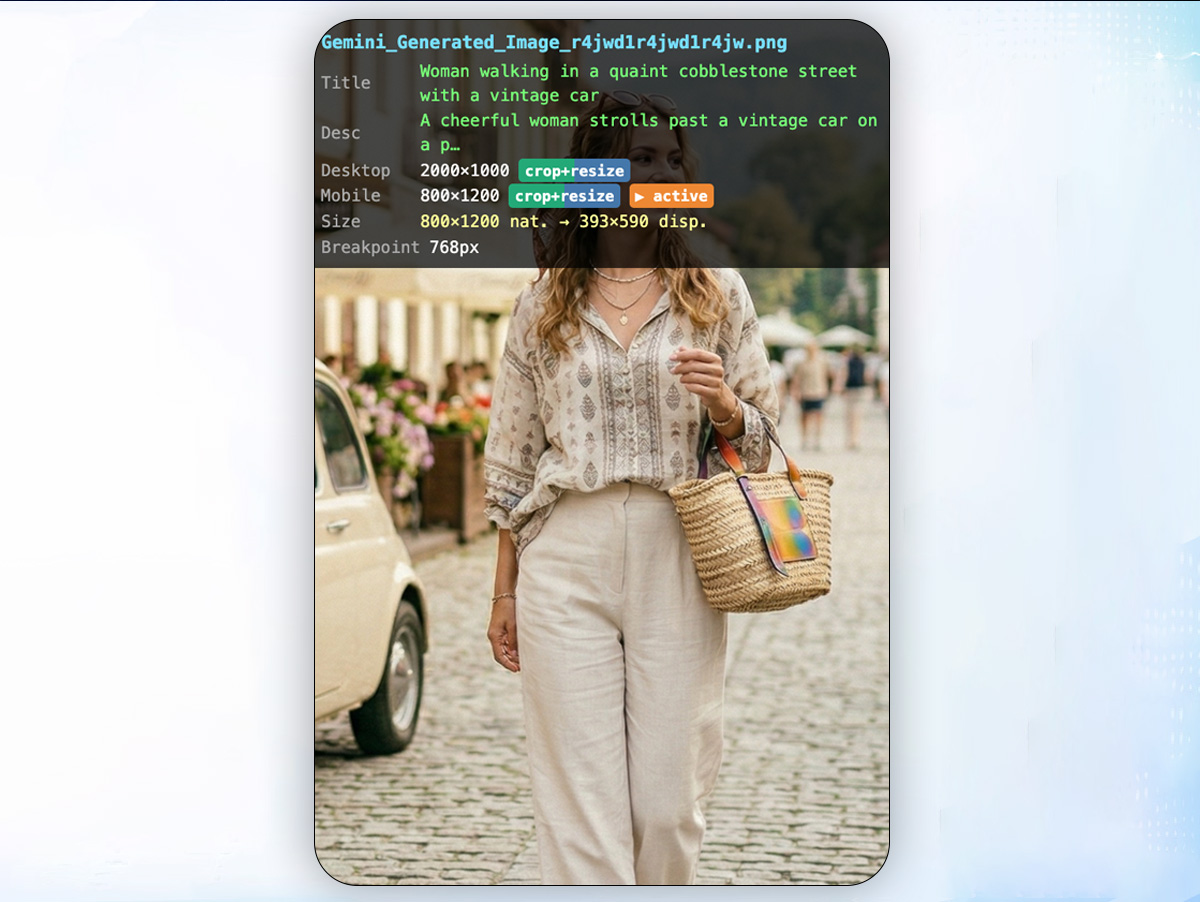
A toggleable diagnostic overlay on <picture> elements showing the active variant (desktop/mobile), natural vs displayed dimensions, breakpoint threshold, and SEO status.
How It Works
ImageBox extends the System\Models\File model with metadata storage and responsive crop URLs. Crop data is stored as normalized coordinates (0–1) in a metadata JSON column on system_files. Physical crop files are generated in storage alongside the original upload and cleaned up automatically when the source file is deleted.
Requirements
- October CMS 3.x
- PHP 8.1+ with GD extension
- OpenAI API key (for AI features only)
Installation via Command Line
php artisan plugin:install Pear.ImageBox
Installation
Install the plugin from the October CMS Marketplace. The migration automatically adds a metadata column to the system_files table.
Configuration
Go to Settings → Media → ImageBox to configure the plugin. Settings are organized into 4 tabs:
Cropping
- Desktop Aspect Ratio — default 16:9
- Mobile Aspect Ratio — default 4:5
- Custom Width/Height — for the "Custom..." ratio option
- Breakpoint — viewport width threshold (default 768px)
- JPEG Quality — GD output quality 1–100 (default 90)
SEO
- SEO-Friendly URLs — enable human-readable image URLs
- URL Source — generate slug from title or description
AI
- AI Enabled — toggle AI image analysis
- API Key — your OpenAI API key
- Model — GPT-4o or GPT-4o Mini
- Language — English, Polish, German, French, or Spanish
- Title Keywords — keywords enforced at the start of generated titles
- Description Keywords — keywords naturally included in descriptions
- Custom Instructions — additional prompt instructions
Advanced
- WebP Support — read-only diagnostic showing GD/Imagick WebP status
- Debug Mode — enable diagnostic overlay on responsive images
Twig Usage
responsive_image()
{{ responsive_image(value, desktopW, desktopH, mobileW, mobileH, options) | raw }}
Parameters:
| Parameter | Type | Description |
|---|---|---|
value |
File / Collection / string | File model, Tailor collection, or media path |
desktopW |
int | Target desktop width (px) |
desktopH |
int | Target desktop height (px) |
mobileW |
int | Target mobile width (px) |
mobileH |
int | Target mobile height (px) |
options |
object | See options below |
Options:
| Key | Default | Description |
|---|---|---|
alt |
file title | Alt text for the image |
class |
— | CSS class on <img> |
loading |
lazy |
lazy or eager |
mode |
crop |
Resize mode: crop, auto, or exact |
Examples
{# Hero banner — large desktop, narrow mobile, eager load #}
{{ responsive_image(item.image, 2000, 1000, 1000, 1400, {loading: 'eager'}) | raw }}

{# Standard content image #}
{{ responsive_image(record.photo, 800, 600, 400, 500) | raw }}

{# Tailor collection — automatically extracts first file #}
{% for slide in slider.slides %}
    {{ responsive_image(slide.image, 1920, 800, 768, 1024) | raw }}
{% endfor %}
Cropping Workflow
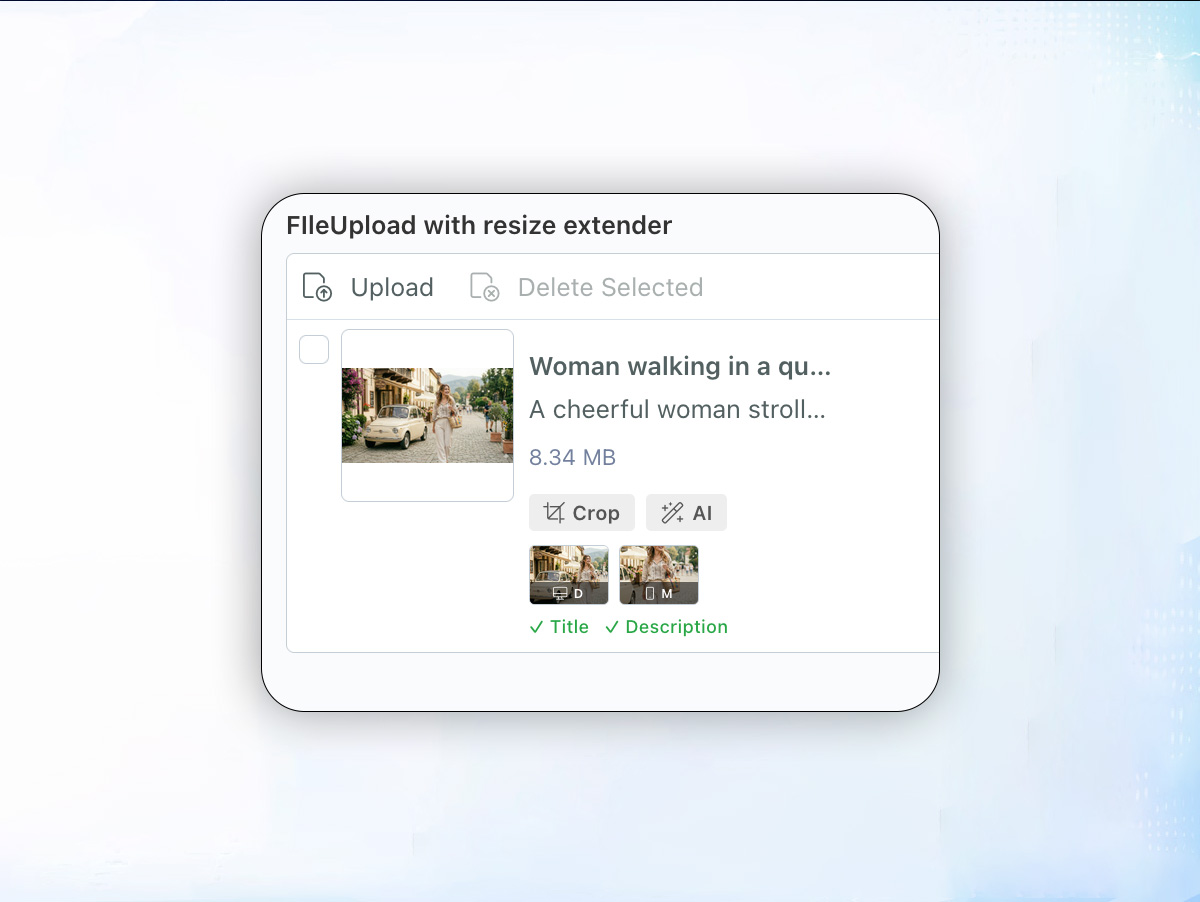
- Upload an image via a FileUpload field in the backend
- Click the Crop button on the thumbnail
- Use the desktop/mobile tabs to set each crop area
- Click Save — physical crop files are generated immediately
- Use
responsive_image()in your theme to output the<picture>tag
Uploads Manager
Navigate to Backend → Media → Uploads to see all uploaded files.
Per-row actions (dropdown):
- AI Analyze — generate title and description via OpenAI
- Crop — open the crop editor modal
- Replace — swap the file while preserving its ID, metadata, and associations
- Delete — remove the file and its crops
Bulk actions (toolbar):
- Delete — delete selected files with crops
- AI Analyze — run AI analysis on all selected images
AI Image Analysis
- Enable AI in Settings → ImageBox → AI
- Enter your OpenAI API key
- Use the AI Analyze action on individual files or in bulk from the Uploads manager
- The AI generates a title (used as alt text) and description (used as title attribute)
- Keywords are enforced: title starts with your keywords, description includes them naturally
-
This plugin has not been reviewed yet.
-
| 1.1.2 |
Fixed hardcoded inline object-fit:cover on responsive_image() output that overrode CSS classes. Added configurable fit option (cover, contain, fill, none, scale-down) defaulting to cover for backward compatibility. Jun 05, 2026 |
|---|---|
| 1.1.1 |
Fixed mobile source media query — removed orientation: portrait condition that prevented mobile image from loading on desktop browsers with narrow viewports. Apr 23, 2026 |
| 1.1.0 |
Added list filter scopes: File Type (Images, Video, Audio, Documents) and Attached To (dynamic model/blueprint filter). Apr 17, 2026 |
| 1.0.0 |
Initial release — visual desktop/mobile cropper, Twig responsive_image(), debug overlay, SEO URLs, AI image analysis (OpenAI Vision), uploads manager Apr 14, 2026 |
Upgrading ImageBox
From 1.0.x to future versions
ImageBox follows semantic versioning. Updates are applied automatically through the October CMS Marketplace.
- Patch updates (1.0.x) — bug fixes, safe to update immediately
- Minor updates (1.x.0) — new features, backward compatible
- Major updates (x.0.0) — may contain breaking changes, check release notes
Migration Notes
- The plugin stores crop metadata in the
system_files.metadatacolumn. This column is added automatically on first install and preserved across updates. - Physical crop files in
storage/app/uploads/are not affected by plugin updates. - Settings are stored via October CMS SettingModel and persist across updates.
No manual steps are required for standard updates.