

MisticEase
Paste video and image URLs and publish. Your media reaches visitors in a form they can interact with.
MisticEase
Paste video and image URLs and publish. Your media reaches visitors in a form they can interact with.
MisticEase™ is a plugin for media-rich pages. Paste a YouTube or Vimeo URL into your content and publish: the URL becomes a clickable thumbnail, and the video opens in a pop-up window. Linked Media Manager images open in the same kind of window, and visitors can drag a window aside and keep reading.
What it does
- Video URLs become thumbnails. Paste a YouTube, YouTube Shorts or Vimeo URL into a page or post and save it. The published page shows a clickable thumbnail. There is no component to add and no embed code to write.
- The player loads on click. The page shows a thumbnail image, and the video player is loaded only when a visitor clicks it.
- Thumbnails are cached on your site. We retrieve each video's thumbnail and title, save them in your storage folder, and serve them from your own site.
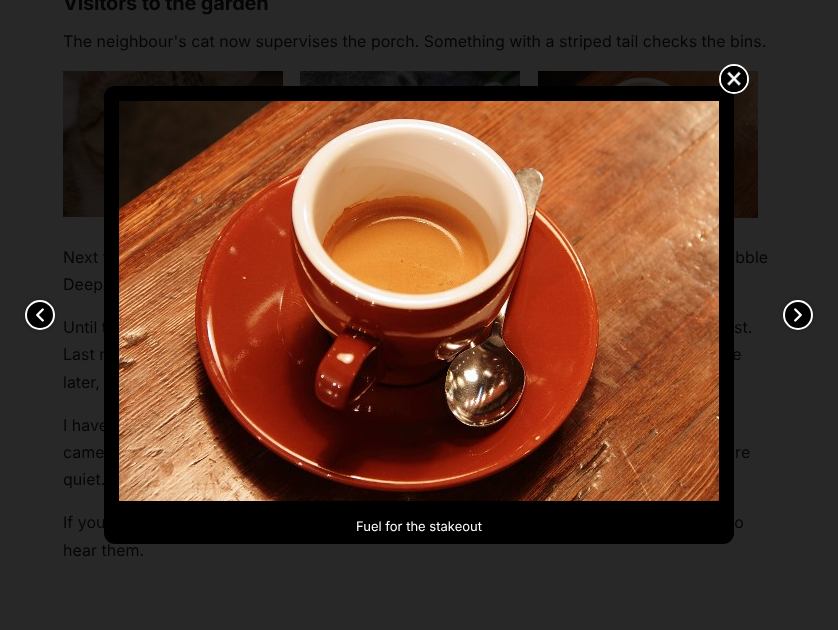
- Images open in a pop-up viewer. Media Manager images that link to their image file open in a pop-up window. Several linked images on one page get previous/next navigation, and you can split them into separate gallery groups.
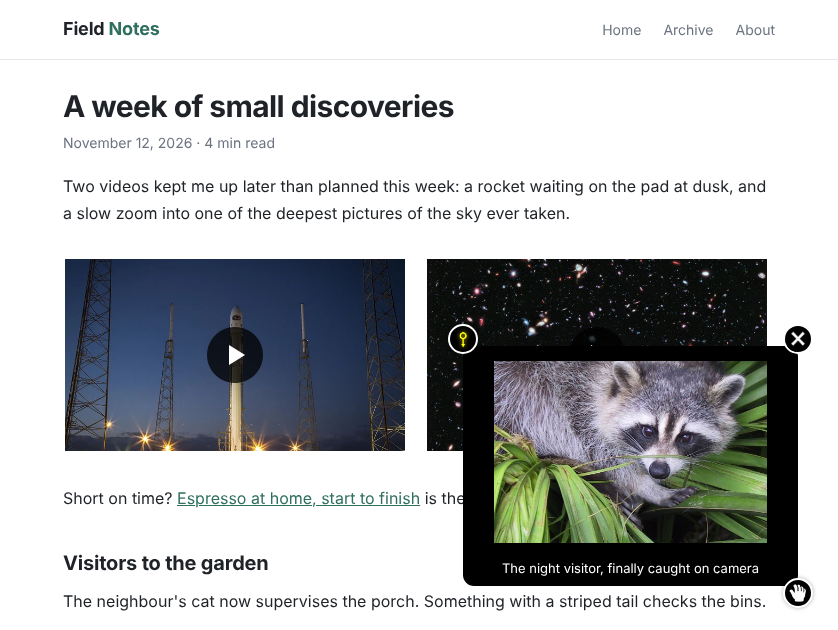
- Floating UX mode. On screens wider than 640 px, visitors can drag a pop-up window into floating mode, resize it, pin it and keep reading the page. One video and up to two images can stay open at once.
- Slash Markup for per-URL control. An optional short prefix in front of a URL sets the thumbnail width, corner radius, pop-up width, gallery group, caption or link label for that URL only.
- Lazy loading. Thumbnails and inline images generated by MisticEase can be loaded when they enter the viewport.
How to use it
- Install the plugin. No setup is required.
- Paste a YouTube, YouTube Shorts or Vimeo URL into the content of a page or post. The rich editor and the Markdown editor follow the same rules.
- Save or publish the page.
- Open the published page once. MisticEase retrieves and caches the thumbnails and titles, so visitors get them from your site.
- Click a thumbnail or a linked image to open it in a pop-up window.
Slash Markup
Slash Markup is optional. It is a prefix written directly in front of a URL, with no space between them:
t300/https://www.youtube.com/watch?v=VIDEO_ID
t300/r30/p900/https://www.youtube.com/watch?v=VIDEO_ID
n/https://vimeo.com/76979871
g1/t300/https://your-site.example/storage/app/media/photo-one.jpg
/Watch this video/p900/https://www.youtube.com/watch?v=VIDEO_ID
t300/sets the thumbnail width to about 300 px.r30/sets a 30 px corner radius on the thumbnail.p900/sets the pop-up width to about 900 px.n/shows a title link instead of a thumbnail.g1/puts an image in gallery group 1.ng/keeps an image out of every gallery group.np/shows an image from your own site inline, without a pop-up window.ttl Text/adds a caption in the pop-up window./Label Text/sets the visible link text.
The Documentation tab has the full reference. In the demo video, the Slash Markup was written in beforehand, so only the URLs are pasted on camera.
Settings
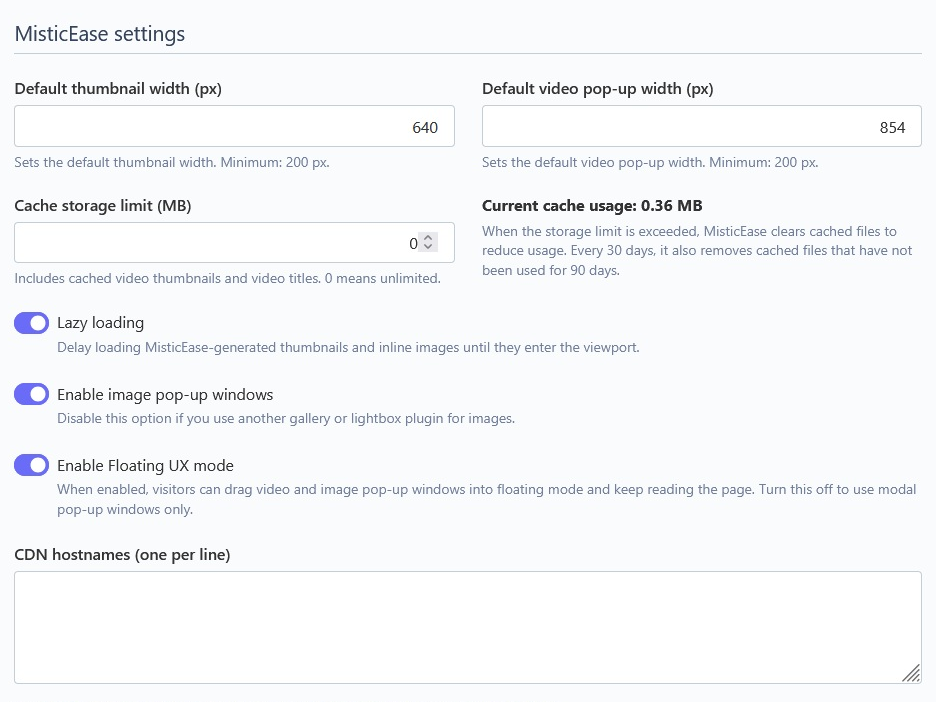
Open Settings, then MisticEase in the CMS section. The settings screen has a Readme tab with the usage guide, and these options:
- Default thumbnail width (default 640 px, minimum 200 px)
- Default video pop-up width (default 854 px, minimum 200 px)
- Cache storage limit in MB (0 means unlimited), with the current cache usage shown next to it
- Lazy loading on or off
- Enable image pop-up windows on or off. Turn this off if you use another gallery or lightbox plugin for images.
- Enable Floating UX mode on or off. When it is off, pop-up windows are modal only.
- CDN hostnames, for sites that serve linked images from another hostname
Languages
The back-end interface is in English. Translations of the settings screen are included for Dutch, French, German, Italian, Japanese, Portuguese (Brazil), Portuguese (Portugal) and Spanish. The front-end labels of the pop-up windows follow the locale of the active site in the same languages.
Requirements
- October CMS 4.0 or later
- PHP 8.2 or later
- No dependencies on other plugins
- JavaScript in the visitor's browser, for pop-up viewing
Installation via Command Line
php artisan plugin:install MistiCuantum.MisticEase
Installation
Install MisticEase™ from the Marketplace, or run:
php artisan plugin:install MistiCuantum.MisticEase
MisticEase requires October CMS 4.0 or later and PHP 8.2 or later. It does not depend on other plugins, and it works without any setup.
Basic workflow
- Paste a YouTube, YouTube Shorts or Vimeo URL into the content of a page or post. The rich editor and the Markdown editor follow the same URL and Slash Markup rules.
- Save or publish the page.
- View the published page. With the default settings, supported video URLs become clickable thumbnails.
- Open the page once after you finish editing it. MisticEase retrieves and caches its video thumbnails and titles, so visitors get them from your site. Until then, a lower-quality thumbnail or a Vimeo placeholder may appear briefly.
- Click a thumbnail or link to open it in a pop-up window.
If your site, host or CDN caches pages, clear that page's cache after you open the page. This means the page cache, not the MisticEase thumbnail cache.
Components
MisticEase does not provide components, and it does not inject variables into CMS pages. It converts supported URLs in the finished HTML of your CMS pages, so no changes to pages, layouts or partials are needed.
Images
- Media Manager images that link to their image file open in the pop-up viewer. Link an image to its image file in the editor, publish the page, and click the image on the published page.
- Text links that point to Media Manager images also open in the pop-up viewer.
- When several linked images are on the same page, visitors can move between them with previous/next navigation, or with the left and right arrow keys.
- Links to images on your own site are handled only when the image is under
/storage/app/media/or/storage/app/uploads/public/. Images stored at another path are left as they are. - Links to images on a CDN hostname that you add in the settings can also open in a pop-up window.
When image pop-up windows are disabled in the settings, MisticEase does not control how images are displayed or what happens on click. It only removes Slash Markup from image URLs.
Slash Markup reference
Slash Markup is optional. Use it when you want to change how one URL is displayed. It is not a shortcode. It is a prefix that must sit directly in front of the URL, with no space, line break or tag between them. Prefixes can be combined in any order.
t300/sets the thumbnail display width to about 300 px.r30/sets a 30 px corner radius on video and image thumbnails.p900/sets the pop-up width to about 900 px.n/shows a title link instead of a thumbnail for a supported video URL.g1/assigns an image to gallery group 1. Previous/next navigation stays inside each numbered group. Images without a group prefix belong to group 0.ng/keeps an image out of every gallery group, so it opens on its own. It takes priority over a group prefix.np/displays an image from your own site as a normal inline image, without a pop-up window. Add atprefix to set its width.ttl Text/adds a caption below the media in the pop-up window. For images, the same text is also used as alternative text./Label Text/sets a custom text label. Place it at the beginning and wrap it in slashes.///after a URL marks where the URL ends, when punctuation or other text follows it immediately.
Examples:
t300/https://www.youtube.com/watch?v=VIDEO_ID
r30/t300/https://www.youtube.com/watch?v=VIDEO_ID
p900/https://www.youtube.com/watch?v=VIDEO_ID
n/p900/https://vimeo.com/76979871
np/https://your-site.example/storage/app/media/image.jpg
t300/r30/np/https://your-site.example/storage/app/media/image.jpg
g1/t300/https://your-site.example/storage/app/media/photo-one.jpg
g2/t300/https://your-site.example/storage/app/media/photo-two.jpg
/Watch this video/p900/https://www.youtube.com/watch?v=VIDEO_ID
/Open image/ttl Image caption/t220/p900/https://your-site.example/storage/app/media/image.jpg
A label inside a sentence, followed by punctuation:
She still stops to watch /the evening departures/p720/https://www.youtube.com/watch?v=VIDEO_ID///.
Other video service URLs
- YouTube and Vimeo URLs that are not single videos, such as channel pages, playlists, user pages and search pages, stay as lightweight external links. Add a custom label when the default link text is not clear.
- Vimeo URLs that include a privacy hash (
h=), such as those of unlisted videos, are left unchanged. A custom label turns such a URL into an external link that shows the label.
/Playlist/https://www.youtube.com/playlist?list=PLAYLIST_ID
/Channel/https://vimeo.com/channels/staffpicks
Layout tips
A plain paragraph is the quickest way to add a media link. Tables are useful for arranging several thumbnails in a clean layout. Video thumbnails scale to fit, so you can arrange media in columns and tables without custom code.
Floating UX mode
- On screens wider than 640 px, visitors can drag video and image pop-up windows into floating mode and keep reading the page.
- Visitors can keep one video and up to two images from different gallery groups open at once. All three windows can be pinned.
- Clicking another image from a group that is already open shows it in the existing window for that group.
- To keep images from two different groups open at once, drag the first image into floating mode and pin it before opening the second.
- The Escape key closes a pop-up window.
- Turn off Floating UX mode in the settings to use modal pop-up windows only.
Settings
Open Settings, then MisticEase in the CMS section. Access requires the "Manage MisticEase settings" permission.
- Default thumbnail width (px): default 640, minimum 200.
- Default video pop-up width (px): default 854, minimum 200.
- Cache storage limit (MB): covers cached video thumbnails and video titles. 0 means unlimited. The current cache usage is shown next to this field.
- Lazy loading: delays loading of MisticEase thumbnails and inline images until they enter the viewport.
- Enable image pop-up windows: turn this off if you use another gallery or lightbox plugin for images.
- Enable Floating UX mode: turn this off to use modal pop-up windows only.
- CDN hostnames: one hostname per line, without scheme or path, for example
cdn.example.com. Leave it empty unless linked images are served from another hostname. This setting does not control access or provide hotlink protection.
Thumbnail cache
- Thumbnails and titles are saved in
storage/app/uploads/misticease. - When the storage limit is exceeded, MisticEase clears cached files to reduce usage. Every 30 days, it also removes cached files that have not been used for 90 days.
- If the storage limit is too small for the thumbnails your pages need, MisticEase pauses saving new thumbnails for 24 hours and shows a notice on the settings screen. Saved thumbnails are still served from your site, and the rest use temporary thumbnails. Saving resumes after 24 hours or when you change the storage limit.
Leaving areas unchanged
MisticEase converts supported URLs anywhere on the page, except in comment sections (partials whose name contains "comment") and inside code elements. To leave another area unchanged, add the data-misticease-skip attribute to the element that wraps it in your theme.
Front-end styling
MisticEase loads its own stylesheet and scripts, and only on pages where it has something to display. It does not require a CSS framework.
Troubleshooting
- A URL stays as plain text. Check that it is a single-video YouTube or Vimeo URL, and that nothing stands between the Slash Markup prefix and the URL.
- A thumbnail looks low quality. Open the published page once so the thumbnail can be cached, then clear your page cache if you use one.
- An image does not open in a pop-up window. Check that the image links to its image file, that the file is under one of the supported storage paths or an added CDN hostname, and that image pop-up windows are enabled.
- Nothing opens on click. Pop-up viewing, floating windows and gallery navigation require JavaScript in the visitor's browser.
Removing the plugin
Removing MisticEase also deletes its settings and its thumbnail cache. This applies when you remove the plugin in the backend or run:
php artisan plugin:remove MistiCuantum.MisticEase
-
This plugin has not been reviewed yet.
-

| 1.0.0 |
Initial release Nov 15, 2026 |
|---|
Initial release