

Backend Pro
A modern, colorful admin skin with dark mode, a Ctrl+K command palette and Full RTL Language support.
Backend Pro
A modern, colorful admin skin with dark mode, a Ctrl+K command palette and Full RTL Language support.
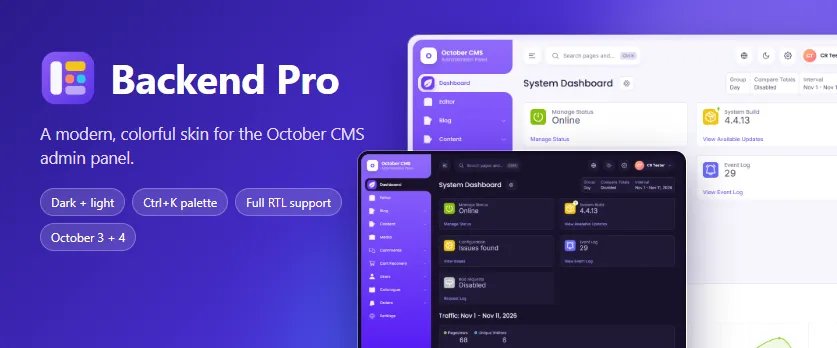
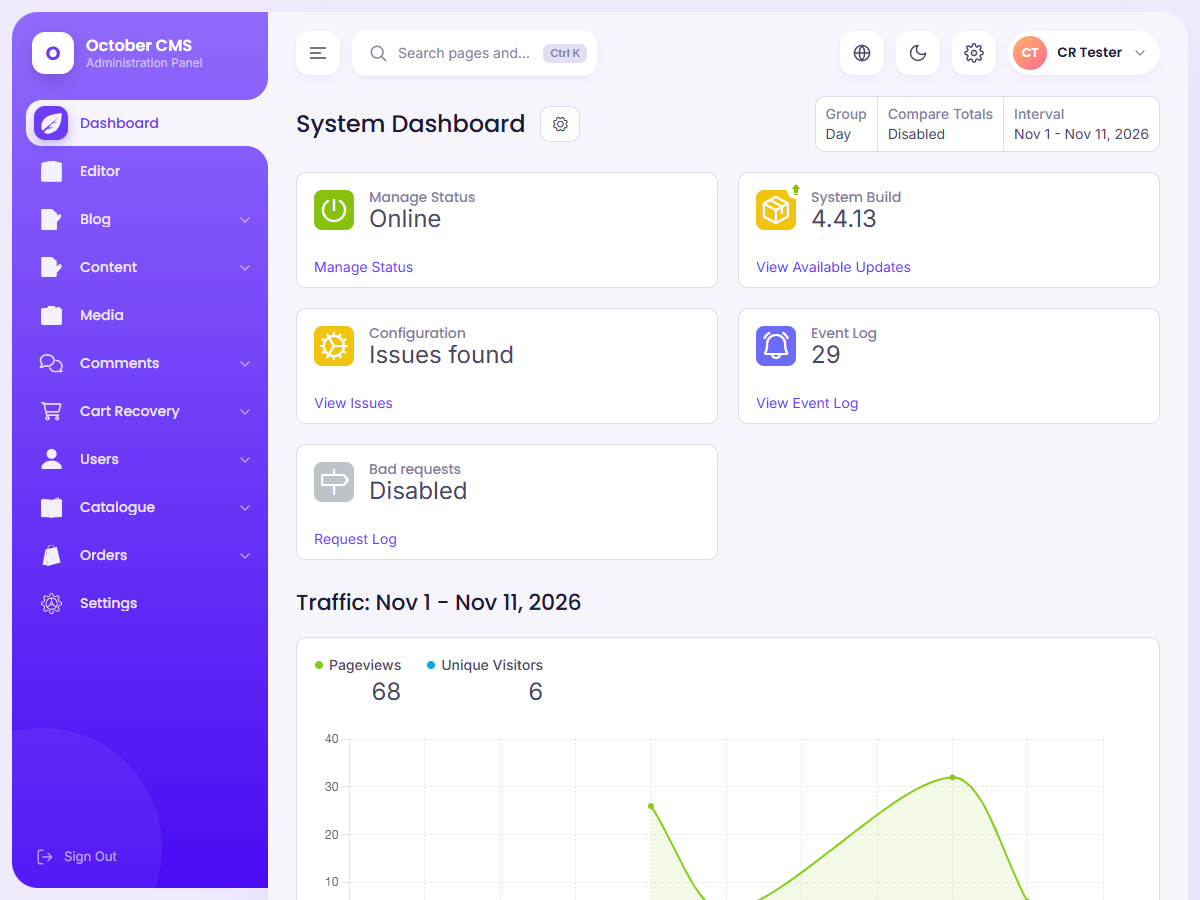
Backend Pro gives the October CMS administration area a modern, colorful look. It adds an accent-colored sidebar, dark and light modes, a command palette for instant navigation and Full RTL Language support. It changes only how the panel looks: every page, form, list and plugin keeps working exactly as before.
Install it and the new skin is active immediately, with nothing to configure. No October CMS file is modified, and the standard look is one switch away.
Works on October CMS 3.7+ and 4.x.
Highlights
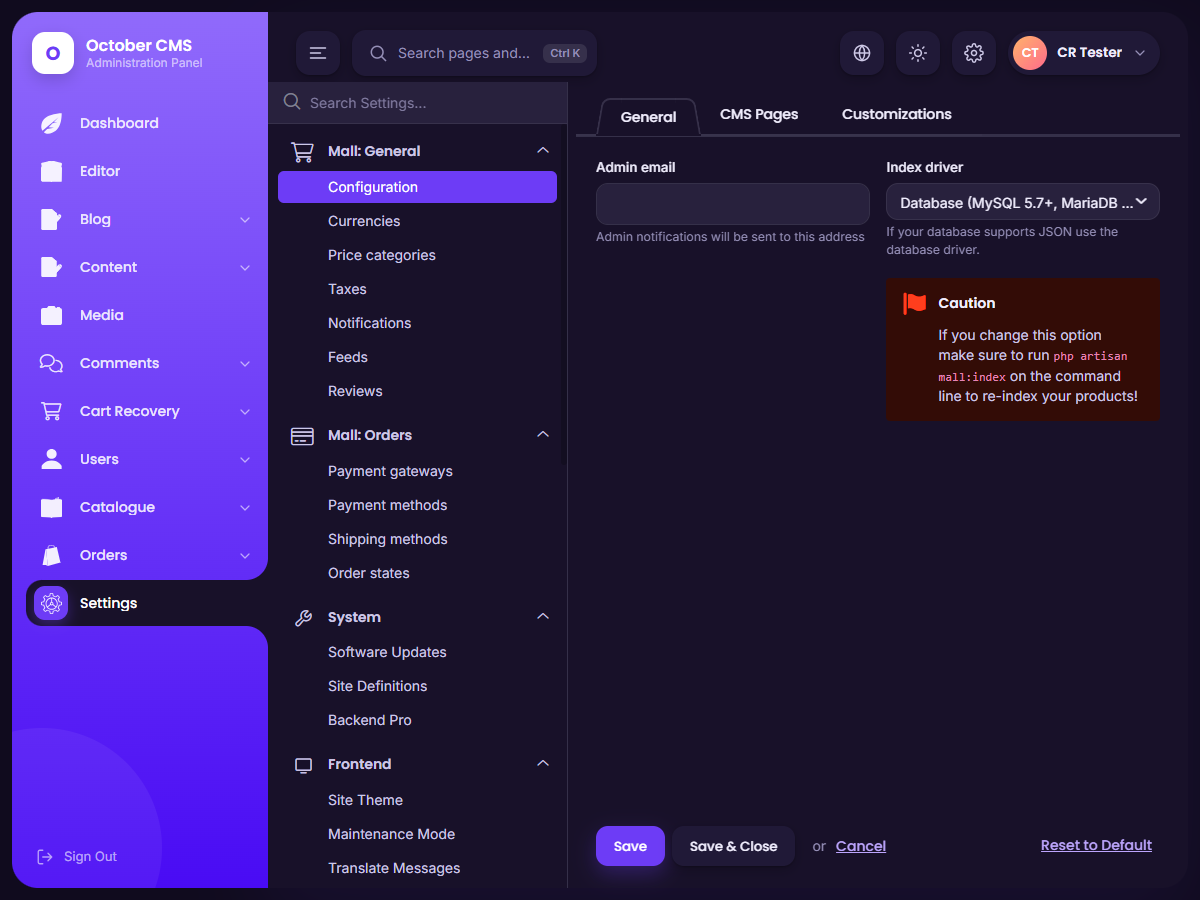
- Colorful sidebar with a smooth "notch" on the active item, nested sub menus with live counters, and a collapsible mode that is remembered per browser.
- Dark and light modes. Every administrator can switch with one click in the top bar, or the panel can follow the operating system.
- One accent color. Pick one of eight presets or any color you like, and every shade of the skin (buttons, links, highlights, sidebar gradient) is generated from it.
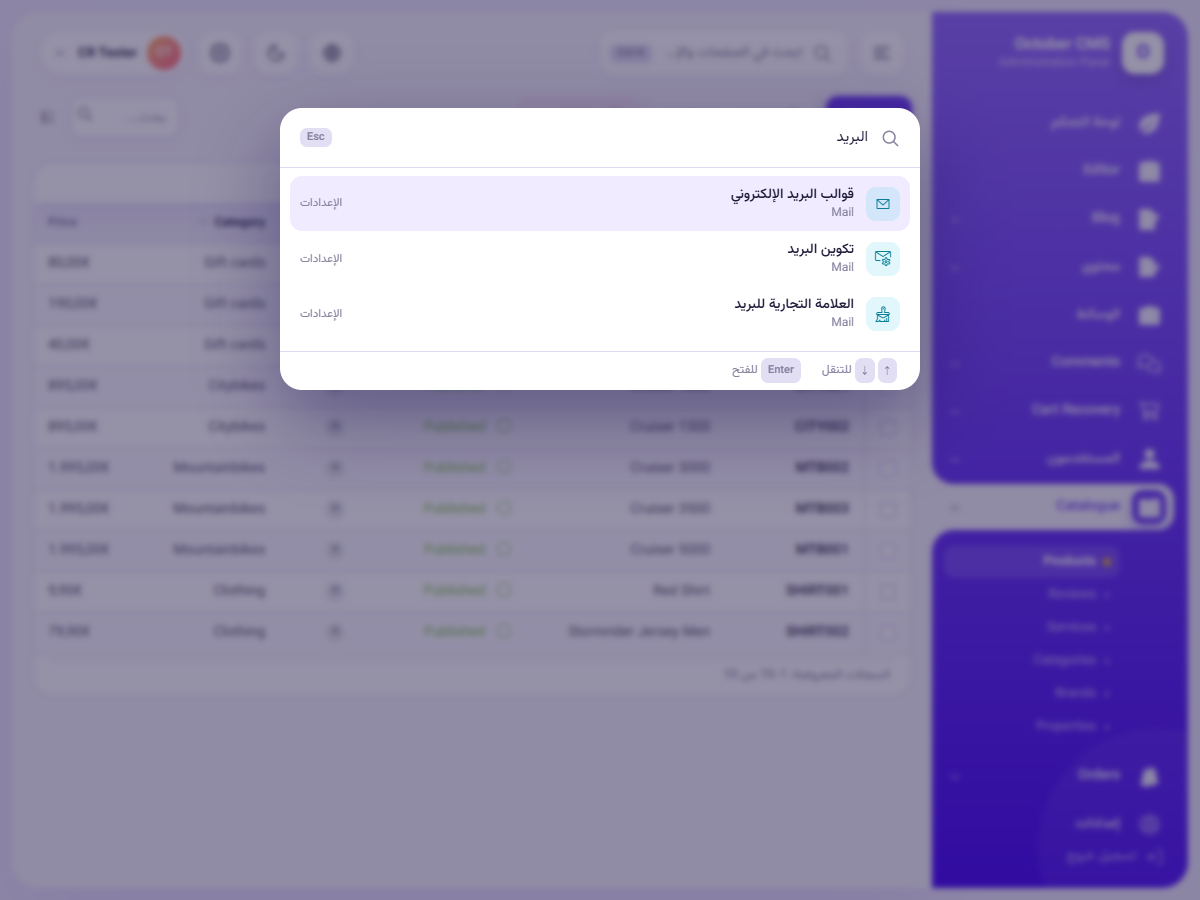
- Command palette. Press Ctrl+K (Cmd+K on Mac) and type to jump to any menu page or settings page. It also switches the color mode and collapses the sidebar.
- Restyled everywhere: dashboards, lists, filters, forms, tabs, buttons, modals, media manager, editor and the sign-in page.
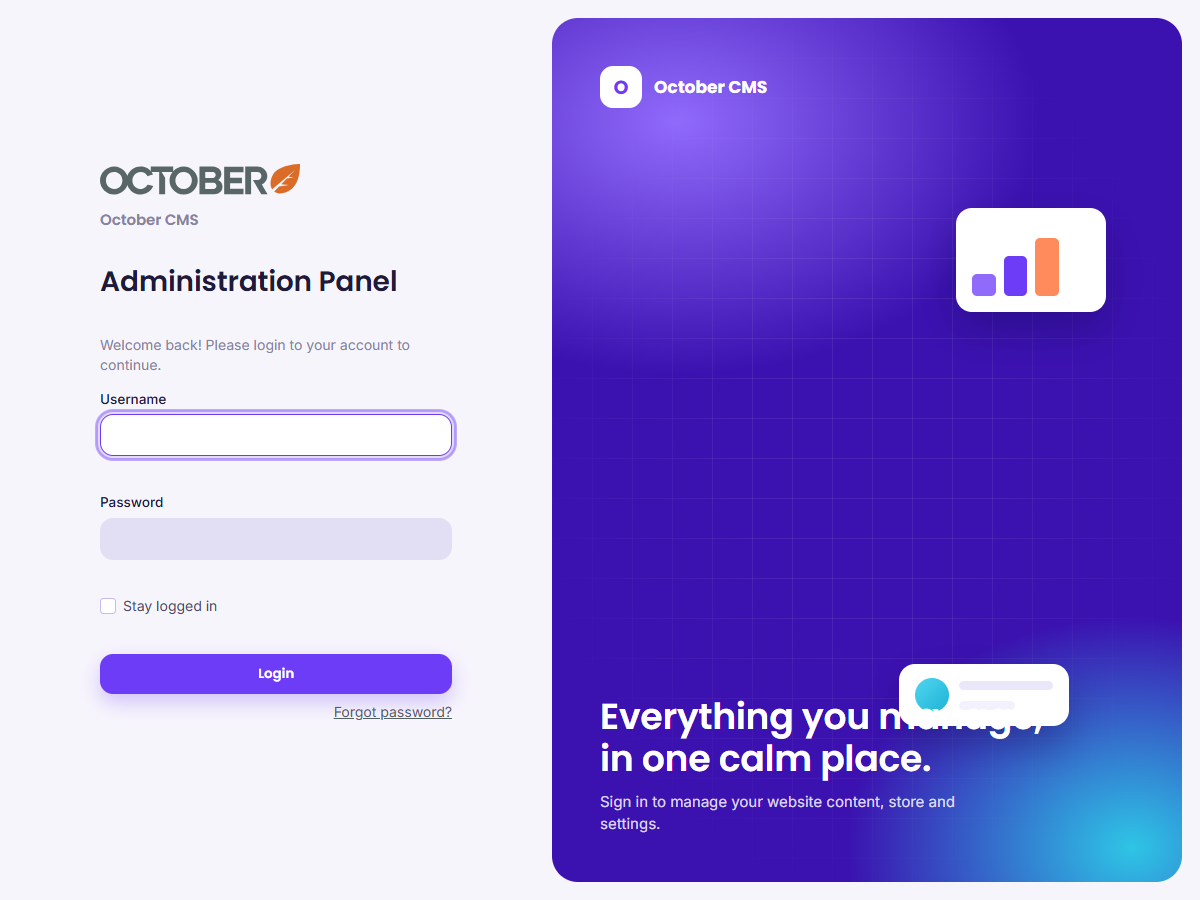
- Your branding: the application name and logo come from Settings > Branding & Appearance, and the sign-in page uses the wallpaper, flat color, image and logo chosen there.
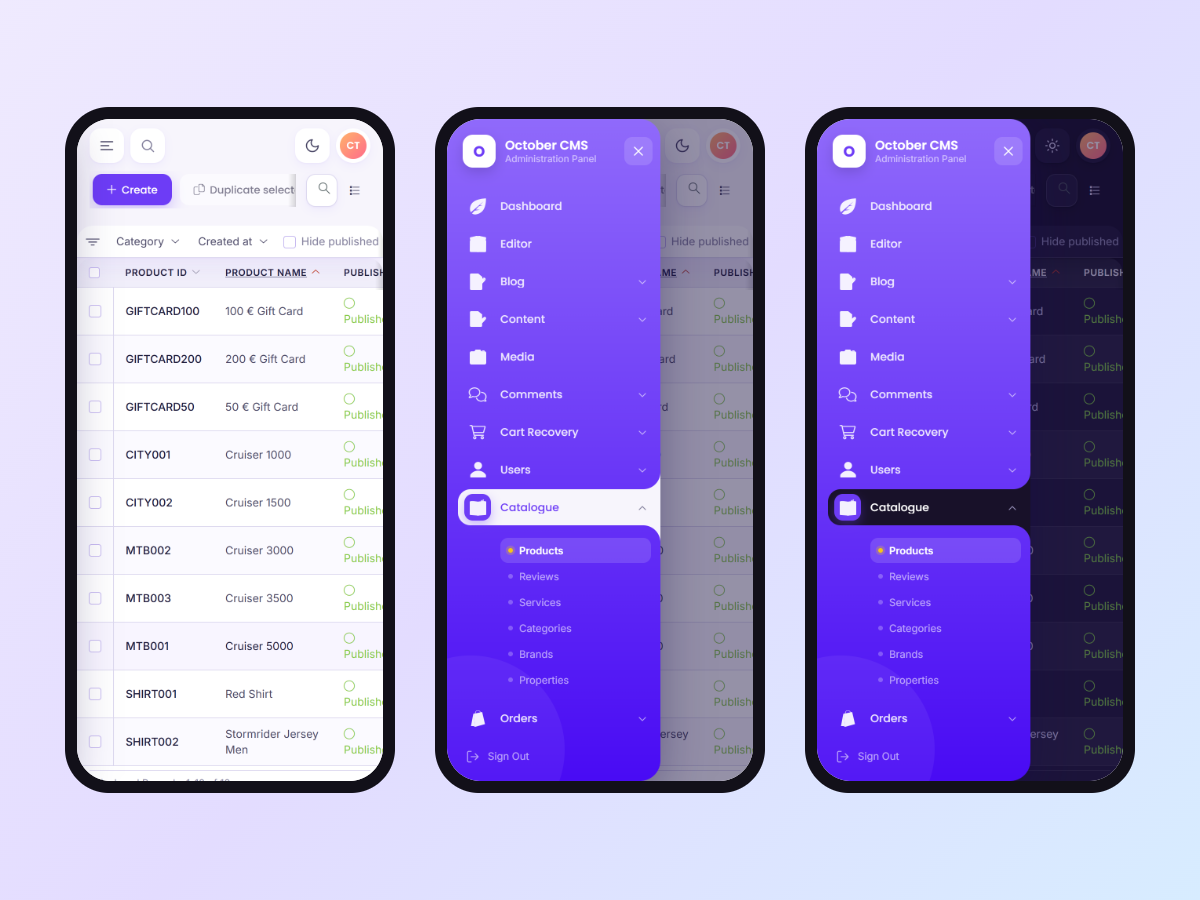
- Mobile friendly: on phones and tablets the sidebar becomes a touch-friendly drawer.
- Works with your plugins. Any plugin with standard back-end controllers is styled automatically.
- Update safety with an automatic fallback to the standard skin (see below).
Full RTL Language support
Backend Pro was designed for right-to-left languages from the start. The screenshots on this page show the panel in a right-to-left language.
When an administrator's back-end language is a right-to-left language, the whole panel switches to a right-to-left layout automatically:
- The sidebar, top bar, menus, side navigation, tabs, lists, filters, forms, modals, dropdowns and popovers are mirrored.
- The stylesheets of the October CMS core and of your other plugins are mirrored automatically, so even plugins that were never built for RTL follow the right-to-left direction. The mirrored files are cached and rebuilt when a stylesheet changes.
- Code editors (Monaco, Ace, CodeMirror) stay left-to-right, so code remains readable.
- Dropdowns and popovers open under their button on the right-hand side.
- RTL text is displayed with the Vazirmatn font, and the Ctrl+K shortcut also works with non-Latin keyboard layouts.
RTL can also be forced on or off in the settings, independent of the language.
Update safety
Backend Pro never modifies October CMS files, so updating October CMS does not overwrite it. It also protects your administration area against future changes in the core:
- Compatibility check. Before the skin is activated, the core classes, methods and layouts it relies on are verified. If something is missing, the standard October CMS skin is used instead.
- Automatic fallback. If the skin cannot be rendered after an update, the same page is shown with the standard October CMS layout instead of an error. Your administration area always stays usable. The sign-in page is protected the same way.
- Clear notice. The reason is written to the system log and shown at the top of the Backend Pro settings page.
- Self-healing. The skin is tried again automatically after October CMS or Backend Pro is updated, or when the settings are saved.
Settings
All options are on one page, Settings > System > Backend Pro:
- Enable or disable the skin without uninstalling
- Accent color and sidebar style (accent gradient, solid accent or dark)
- Default color mode (light, dark or follow the operating system) and whether each administrator may switch it
- Monochrome sidebar icons for a consistent look
- Sidebar subtitle
- Command palette and "View website" shortcut on or off
- Right-to-left layout: automatic by language, always or never
- Google Fonts (Inter, Poppins, Vazirmatn) or the system fonts
Getting started
- Add Backend Pro to your project and run the update from Settings > Updates & Plugins, or run
php artisan plugin:install Aleez.BackendPro. - Reload the administration area. The new skin is active.
- Optional: open Settings > System > Backend Pro to choose your accent color, sidebar style and default color mode.
- Optional: choose a right-to-left back-end language in My account > Preferences. The panel switches to right-to-left automatically.
Requirements
- October CMS 3.7 or later, or October CMS 4.x.
- PHP 8.0.2 or later (follow the requirement of your October CMS version).
- No other plugins are required.
Languages
The plugin interface is in English and fully translatable, including right-to-left languages. The rest of the panel uses the October CMS translations of your back-end language. Additional languages can be added with the standard October CMS language files.
Installation via Command Line
php artisan plugin:install Aleez.BackendPro
Backend Pro documentation
- Installation
- How the skin works
- Settings reference
- Color modes
- Accent color and sidebar style
- Command palette
- Branding and the sign-in page
- Full RTL Language support
- Mobile and tablets
- Update safety and automatic fallback
- Permissions
- Compatibility with other plugins
- Disabling and uninstalling
- Troubleshooting
Backend Pro is a back-end skin for October CMS 3.7+ and 4.x. It has no front-end components and no database tables of its own. It stores its options with the standard October CMS settings model.
Installation
Add Backend Pro to your project on the October CMS Marketplace and run the update from Settings > Updates & Plugins, or install it from the command line:
php artisan plugin:install Aleez.BackendPro
For a manual installation, copy the plugin to plugins/aleez/backendpro and run:
php artisan october:migrate
The skin is active right after installation. Reload the administration area to see it. No other plugins are required.
How the skin works
Backend Pro registers itself as the October CMS back-end skin (the backend.skin option) when the back end is loaded. It provides its own main layout with the sidebar and top bar, and leaves all other layouts, pages and widgets to October CMS. The styles are based on the CSS variables of the October CMS core, so lists, forms and widgets from other plugins are styled automatically.
- No file of October CMS is modified.
- If
config/backend.phpalready sets a customskin, Backend Pro does not replace it. - Pages with their own side navigation (for example Settings and Editor) keep it next to the content, while the main menu lives in the sidebar.
Settings reference
Settings > System > Backend Pro. The page has three tabs.
Appearance
| Option | Default | Description |
|---|---|---|
| Enable Backend Pro skin | On | Turn off to return to the standard October CMS look without uninstalling |
| Accent color | Purple | Main color of the sidebar, buttons and highlights. Eight presets or any custom color |
| Sidebar style | Accent gradient | Accent gradient, solid accent or dark |
| Default color mode | Light | Light, dark or follow the operating system |
| Allow each administrator to switch mode | On | Shows the dark / light toggle in the top bar |
| Monochrome menu icons | On | Shows colorful plugin icons in white inside the sidebar |
| Sidebar subtitle | Empty | Small text under the application name. Empty uses the tagline from Branding settings |
Features
| Option | Default | Description |
|---|---|---|
| Command palette (Ctrl+K) | On | Quick search for every menu page and settings page |
| Show "View website" shortcuts | On | Website link in the top bar, opens in a new tab |
Language and fonts
| Option | Default | Description |
|---|---|---|
| Right-to-left layout | Automatic | Automatic (by back-end language), always right-to-left, or never |
| Load fonts from Google Fonts | On | Inter and Poppins, Vazirmatn for RTL languages. Turn off to use system fonts |
Saving the settings also clears a remembered fallback state (see Update safety).
Color modes
The default color mode applies to every administrator until they choose a mode with the sun / moon button in the top bar, or with the command palette. The choice is stored in a cookie (bp_theme) in that browser. "Follow the operating system" uses the light or dark preference of the device and changes automatically.
Turn off "Allow each administrator to switch mode" to use the default mode for everyone.
Accent color and sidebar style
The accent color is converted into a full palette of lighter and darker shades, which are used for the sidebar, buttons, links, focus rings, active tabs and highlights in both color modes. Colors are entered in the #rrggbb format.
The sidebar can use an accent gradient, a solid accent color or a dark background. The collapsed state of the sidebar (icons only) is remembered per browser in the bp_side cookie.
Command palette
Press Ctrl+K (or Cmd+K on Mac) anywhere in the back end, or click the search box in the top bar. Type a few letters to filter:
- every main menu and sub menu page you have access to,
- every settings page you have access to,
- actions: switch dark / light mode, collapse or expand the sidebar, view the website, sign out.
Use the Up and Down keys to move, Enter to open the selected page, Ctrl+Enter (Cmd+Enter) to open it in a new tab, and Esc to close the palette. The shortcut uses the physical K key, so it also works with non-Latin keyboard layouts. The palette only lists pages allowed by the administrator's permissions.
Branding and the sign-in page
Backend Pro uses the values of Settings > Branding & Appearance:
- App name and App tagline are shown at the top of the sidebar (the tagline unless a sidebar subtitle is set).
- Logo (and the navigation logo on October CMS 4) is shown in the sidebar and on the sign-in page.
- On the Login Page tab, a wallpaper image, a flat background color or a custom image are applied to the sign-in page. With a light background color the text switches to dark for readability.
Full RTL Language support
In automatic mode, the right-to-left layout is used whenever the back-end language of the administrator is a right-to-left language (language codes ar, fa, he, ur, ps, ckb, ku, sd, ug, yi and dv, including regional variants). Each administrator chooses the language on their Preferences page, so one administrator can work in a right-to-left language while another works in English.
How it works:
- The page direction is set to
rtl, and the skin's own styles use logical properties that follow the direction. - The stylesheets of the October CMS core and of other plugins that are loaded with the page are mirrored automatically: left and right values (margins, paddings, positions, floats, text alignment, borders, radiuses, background positions and similar) are swapped. Rules that are already written for a direction (for example
[dir=rtl]selectors) are kept as they are. - The mirrored copies are stored in
storage/app/resources/backendpro-rtland rebuilt automatically when the original file changes. If a stylesheet cannot be mirrored, the original file is used. - Code editors (Monaco, Ace, CodeMirror) and code blocks always stay left-to-right.
- Dropdowns, popovers and menus that are positioned by JavaScript are aligned to the right edge of the button that opened them and kept inside the content area.
- RTL text uses the Vazirmatn font (when Google Fonts are enabled).
Limitation: stylesheets that are loaded later by JavaScript, after the page has loaded, are not mirrored.
Mobile and tablets
On small screens the sidebar becomes a drawer that opens with the menu button in the top bar and closes with the close button, a tap outside or Esc. Lists and forms keep the October CMS responsive behavior.
Update safety and automatic fallback
Because the skin replaces the main back-end layout, a future October CMS release could change something the skin depends on. Backend Pro protects the administration area in three ways:
- Compatibility check before activation. On each back-end request, the core classes, methods and layout files the skin uses are verified. If one is missing, the skin is not activated and the standard October CMS skin is used.
- Fallback while rendering. All parts of the layout that depend on the core (sidebar, top bar, command palette, side navigation and page head) are rendered before the page content. If any of them fails, the page is rendered with the standard October CMS layout instead, so no error page is shown. Errors in the styling of the sign-in page are handled the same way.
- Notice and automatic retry. The reason is written once to the system log (Settings > Event Log) and shown at the top of the Backend Pro settings page. The standard skin stays active until October CMS or Backend Pro is updated, or until the Backend Pro settings are saved. Then the skin is tried again automatically.
Purely visual differences (for example a new core widget that is not fully restyled) do not trigger the fallback. Please keep Backend Pro up to date after major October CMS updates.
Permissions
| Permission | Description |
|---|---|
aleez.backendpro.settings |
Manage Backend Pro appearance settings |
The skin itself is shown to every administrator. The color mode toggle and the command palette respect the settings above, and the palette lists only pages the administrator may open.
Compatibility with other plugins
Plugins that use the standard October CMS back-end controllers, behaviors and widgets are styled automatically, in both color modes and in RTL. Plugins that ship heavily customized back-end pages keep their own styles. Their stylesheets are still mirrored in RTL when they are loaded with the page.
Plugin icons in the sidebar are shown in white when "Monochrome menu icons" is on. Turn it off to keep the original colors.
Disabling and uninstalling
- Turn off Enable Backend Pro skin in the settings to return to the standard look.
- From the command line:
php artisan plugin:disable Aleez.BackendPro(enable again withplugin:enable). - Uninstalling the plugin removes the skin and its settings. Nothing in the core needs to be restored. The RTL cache folder
storage/app/resources/backendpro-rtlcan be deleted at any time.
Troubleshooting
The panel suddenly shows the standard October CMS look. The automatic fallback is active. Open Settings > System > Backend Pro to read the reason, update Backend Pro, then save the settings to try the skin again.
A plugin's page looks wrong in RTL. If the plugin loads its stylesheet with JavaScript after the page has loaded, it is not mirrored. Clear the folder storage/app/resources/backendpro-rtl after updating a plugin if the old mirrored copy is still used.
Fonts look different from the screenshots. Google Fonts may be blocked on your network. The skin then uses the system fonts. Turn off "Load fonts from Google Fonts" to avoid the request.
Ctrl+K opens the browser search instead of the palette. Click inside the administration page first so it has the keyboard focus, or click the search box in the top bar.
-
This plugin has not been reviewed yet.
-

| 1.0.0 |
First version of Backend Pro - colorful admin skin with dark and light modes, command palette, full RTL language support and automatic fallback to the standard skin Nov 10, 2026 |
|---|